Audio Input
Audio Input brings music, speech, or sound effects from a file into your Graph. After Studio prepares the file, the Audio output supplies it to connected Nodes.
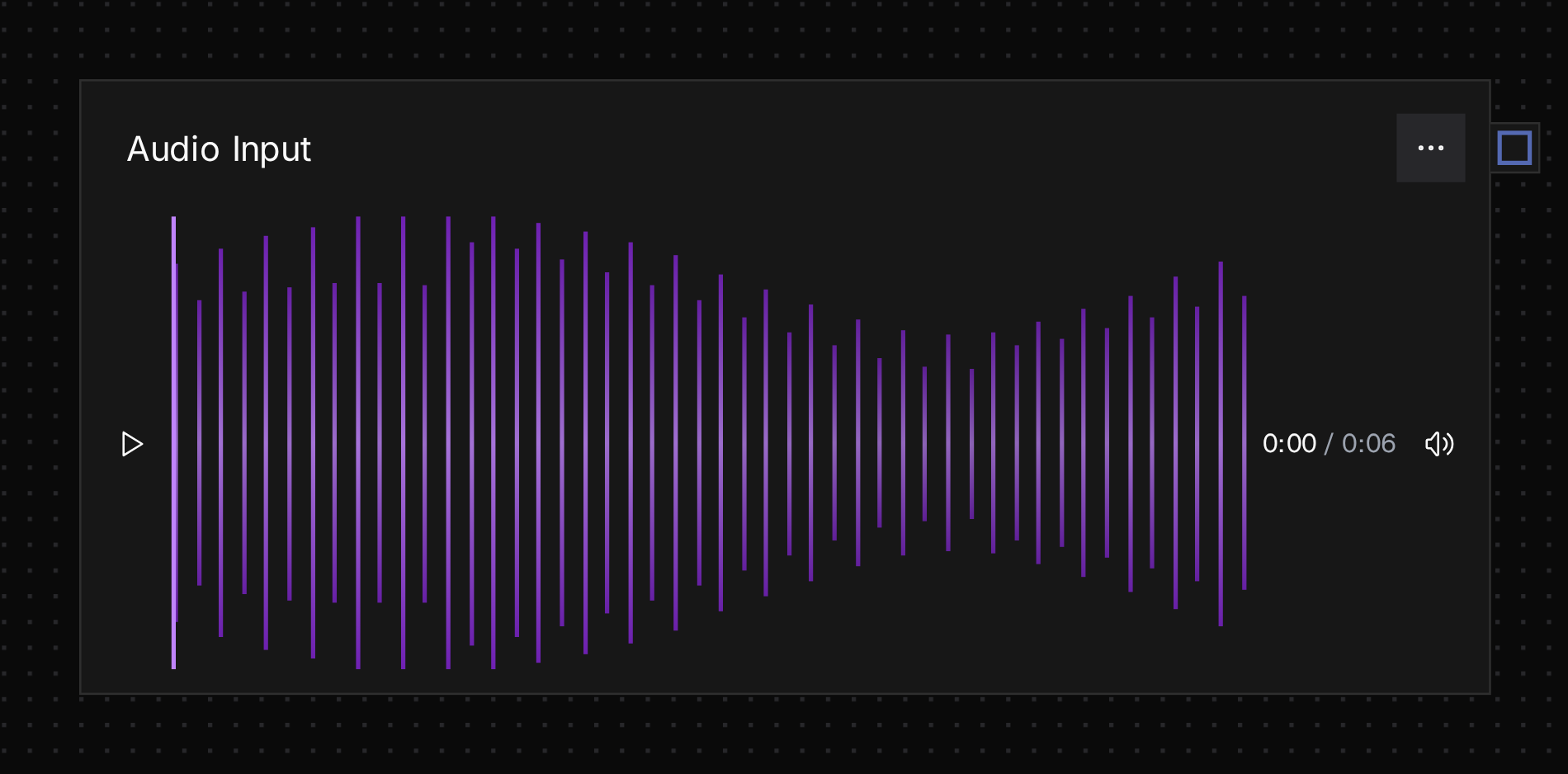
The waveform shows the imported recording. Use the player to listen before connecting it.
Add audio
- Add Audio Input to your Graph.
- Click Choose file, or drop an audio file onto the Node.
- Wait for Studio to finish preparing the file.
- Connect Audio to an audio input on another Node.
To replace the recording, drop another audio file onto the Node. The replacement supplies the audio for future Runs through the same connections.
Listen to the recording
Use Play and Pause to listen. Drag the playback position along the waveform to hear a different part, or use Mute to silence the preview. Playback loops when it reaches the end.
These controls change what you hear in the preview. They do not trim the recording or change the audio sent to other Nodes.
Add a soundtrack to a clip
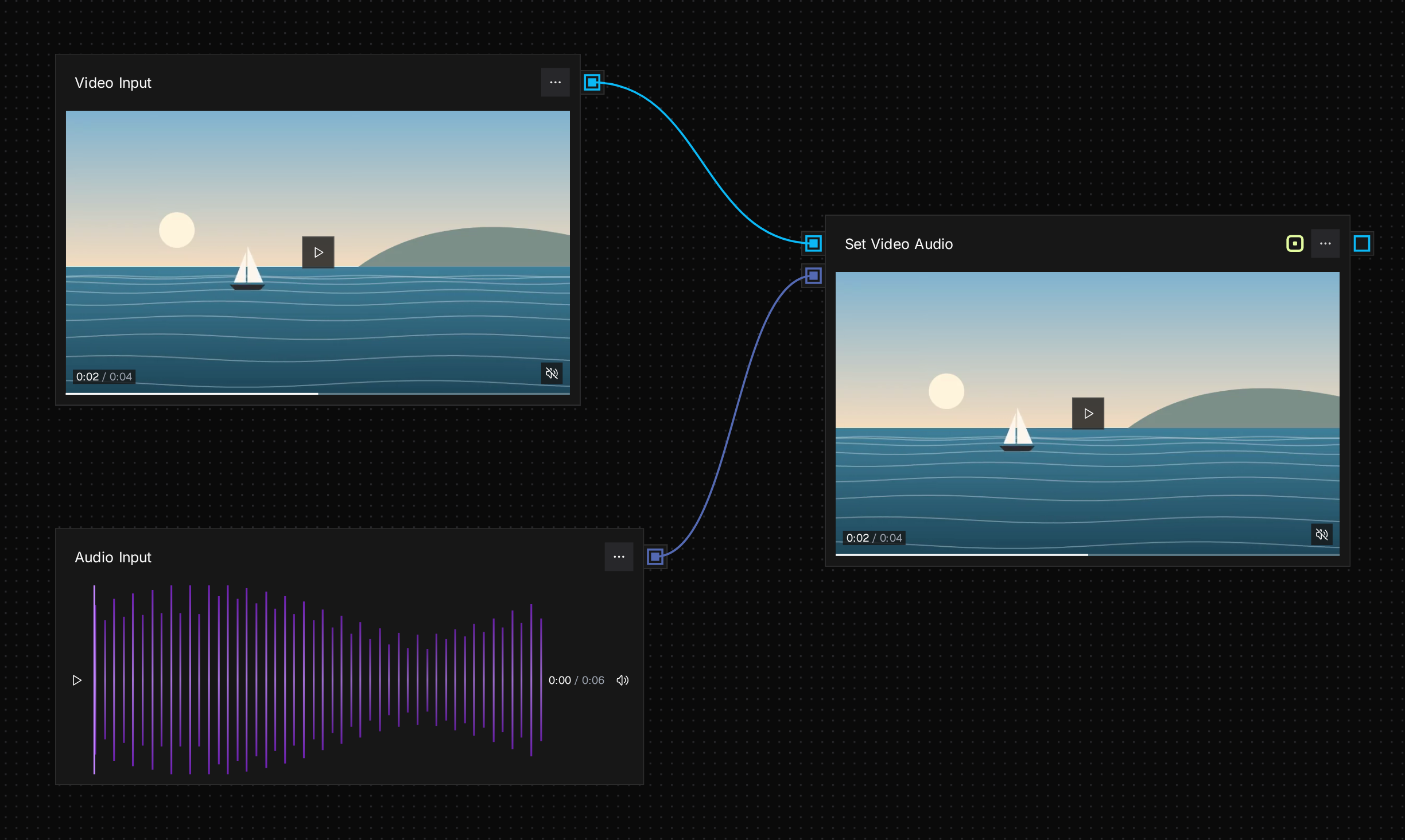
Audio Input used to give a coastal clip a musical soundtrack. Media and the output are illustrative.
Set Video Audio replaces a video's soundtrack while keeping its frames. It trims a longer recording or adds silence after a shorter one to match the video length.
Files and limits
Studio must be able to read an audio track from the file in your browser. It prepares audio as Ogg Opus; files already in that format can be used without conversion. If preparation fails, check the error and try a file your browser can decode.
Audio must be at least 10 ms long to use in a Run. Connected Nodes can impose their own duration limits, so check the destination Node before choosing a recording.
Audio Input has no input ports and one Audio output. It supplies the prepared recording; it does not generate sound.
Related pages
-
Audio — compatible values, formats, and limits.
-
Set Video Audio — replace a video's soundtrack.
-
Extract Audio — take audio from an existing video.
-
Video Input — bring a clip into the Graph.