Seedance 2.5 (on fal)
Seedance 2.5 creates, edits, and extends videos, with optional generated audio. With only a prompt connected, it creates a new video. Studio uses ByteDance’s Seedance 2.5 through fal.
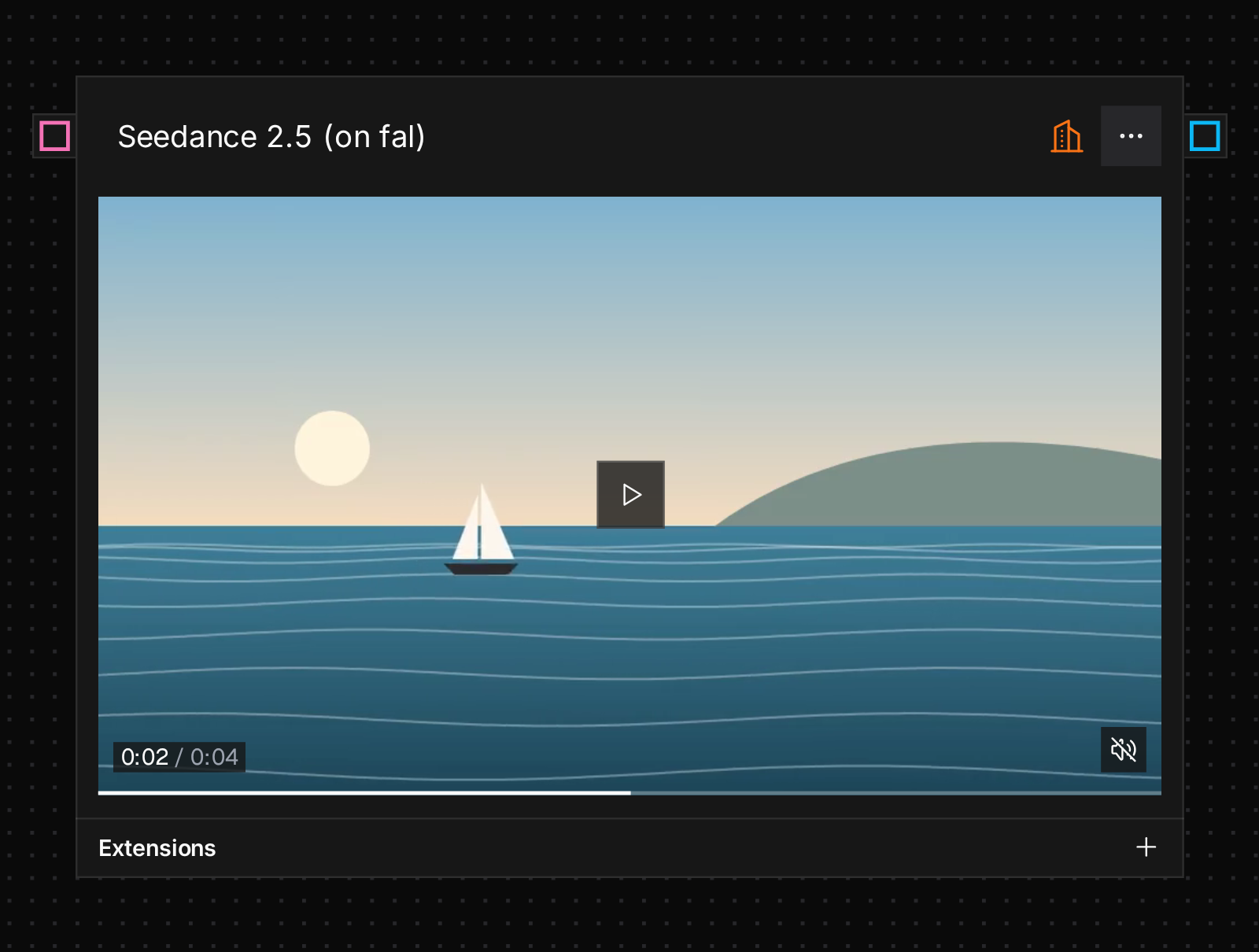
Seedance 2.5 with an illustrative video result.
Create a video
- Connect Text Input to Prompt.
- Describe the subject, action, and camera movement. For example: “Track along a rocky coast at sunset. Waves break against the cliffs.”
- Select the Node to open its settings.
- Choose Resolution, Aspect Ratio, and Duration.
- Turn on Generate Audio if you want sound in the video.
- Click Run.
The Video output connects to Nodes that accept Video, such as Resize Video or Extract Audio.
Start from images
- Add First Frame from Model Extensions.
- Connect an Image to the new input.
- Add and connect Last Frame if you want to guide the ending too.
- Describe what happens between the frames in Prompt.
Last Frame requires First Frame. These frame inputs cannot be combined with reference media, Edit Video, or Extend Video. The first frame determines the output’s aspect ratio; Resolution still controls its size.
Use reference media
Add Image Reference, Video Reference, or Audio Reference through Model Extensions, then connect the matching media. References guide a new video without fixing its first or last frame.
Refer to connected media in the prompt as @Image1, @Video1, or @Audio1. Number each media kind separately. For example: “Use the coastline in @Video1 and the rhythm of @Audio1.” See fal’s reference prompt format.
Audio references require at least one image reference, video reference, or source video.
Edit or extend a video
- Add Edit Video to change a clip, or Extend Video to continue it.
- Connect a Video Input or another Node’s Video output.
- Describe the change or continuation in Prompt.
- Add reference images, videos, or audio if needed.
- Click Run.
Choose one source mode at a time. Both use the source’s aspect ratio. Edit Video also takes its duration from the source, so Duration is disabled. Extend Video keeps Duration available for the continuation. The result’s exact dimensions and length can differ from Studio’s estimate.
In these modes, the source is @Video1. Additional video references start at @Video2.
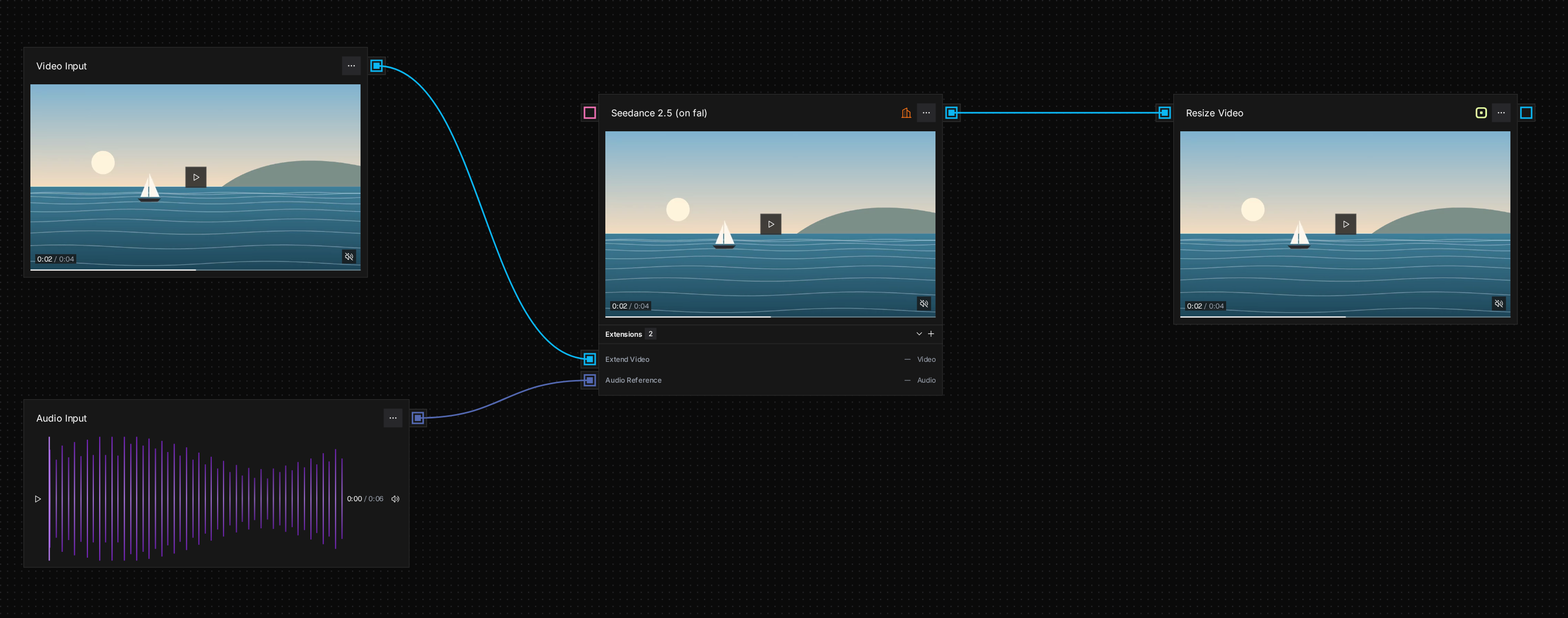
Seedance 2.5 used to continue a coastal shot with musical guidance, then resize it for delivery. Media and results are illustrative.
Settings
| Setting | What it controls |
|---|---|
| Duration | Request 4–30 whole seconds, or choose Auto duration to let the model choose. Disabled for Edit Video. |
| Resolution | Choose 480p or 720p. |
| Aspect Ratio | Choose the frame shape. Disabled when First Frame, Edit Video, or Extend Video supplies it. |
| Seed | Controls sampling in reference, edit, and extend modes. Unavailable for prompt-only and first/last-frame generation. |
| Generate Audio | Requests sound as part of the output Video. |
Media limits
Studio accepts up to 15 reference files in total, including an edit or extend source. Within that total, you can use up to 15 images, 10 videos, and 10 audio files. The source counts as one video.
| Media | Limits in Studio |
|---|---|
| Each source or reference video | 2–30 seconds; 24–60 fps; 300–4096 pixels per side; width divided by height between 0.42 and 2.375. |
| All videos combined | At most 30 seconds, including the source. |
| Each audio reference | 2–30 seconds. |
| All audio references combined | At most 30 seconds, separate from the video allowance. |
For example, a 20-second source and a 10-second video reference use the full video allowance. You can still add a 6-second audio reference.
Studio also limits each prepared file sent to this model: PNG images to 28.5 MB, MP4 videos to 190 MB, and WAV audio to 14.25 MB. These use decimal MB and apply after media preparation, so the original upload’s size can differ. Resize large images or videos before connecting them.
An unsupported combination or a known limit violation blocks the Run. When reference properties are unknown, Studio shows a warning and checks them when they become available. These are Studio’s supported limits; fal can expose additional options outside this Node.