MiniMax H3 (on fal)
MiniMax H3 creates video with sound from a prompt. With only text connected, it creates a new scene; add images, video, or audio to guide it. See the MiniMax H3 release.
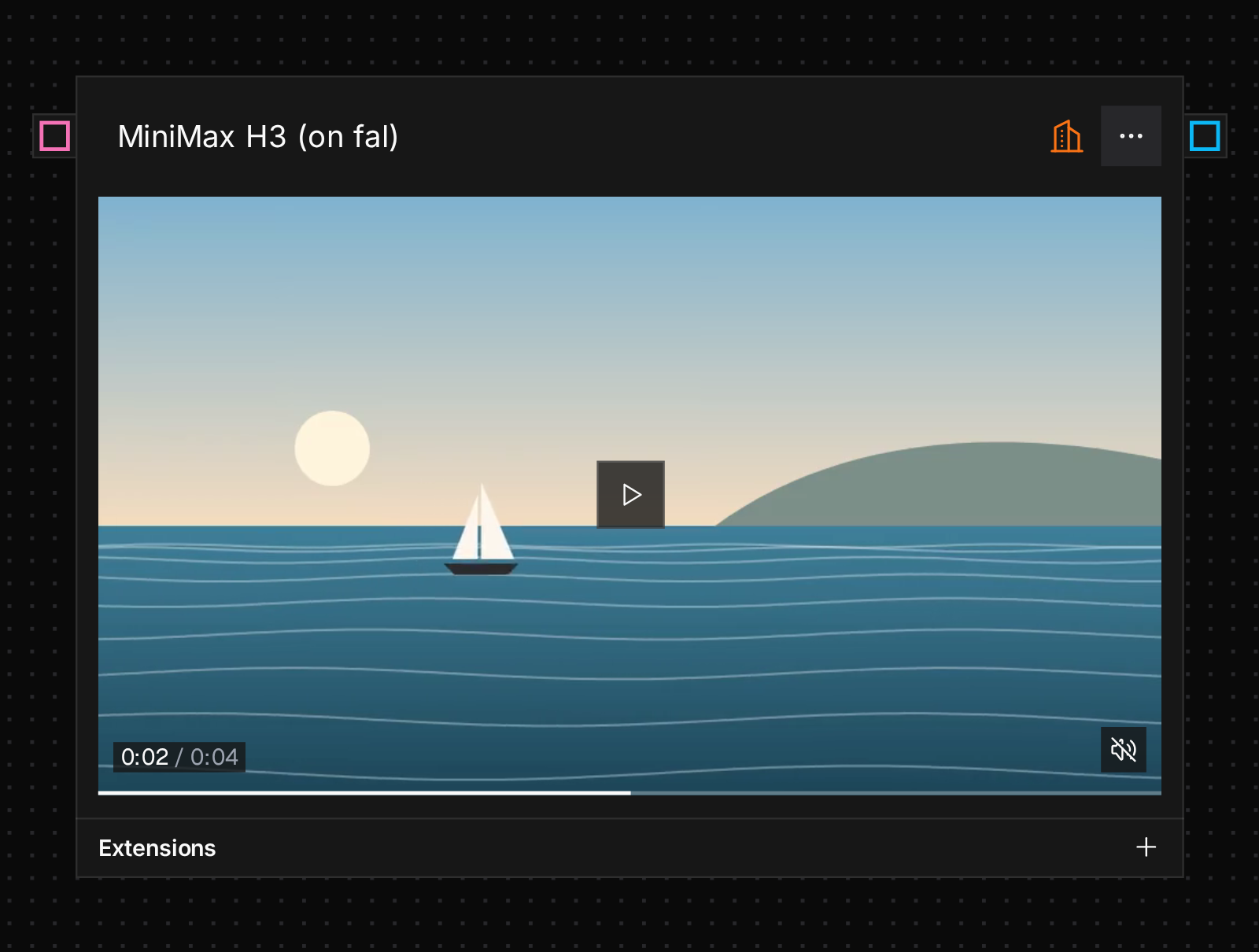
The Video preview includes the generated soundtrack. The result shown is illustrative.
Create a video
- Connect Text Input to Prompt.
- Describe the scene, action, camera movement, and sounds.
- Set Duration to a whole number from 5 to 15 seconds.
- Choose Resolution and Aspect Ratio in the sidebar.
- Click Run.
For example: “Track along a rocky coast at sunset. Waves break against the rocks; keep the camera low and the sound of surf clear.” This is an illustrative prompt.
The Video output connects to Nodes that accept Video. Connect it to Extract Audio to use its soundtrack separately. Delivered clips can be slightly longer than Duration because the model aligns its frames.
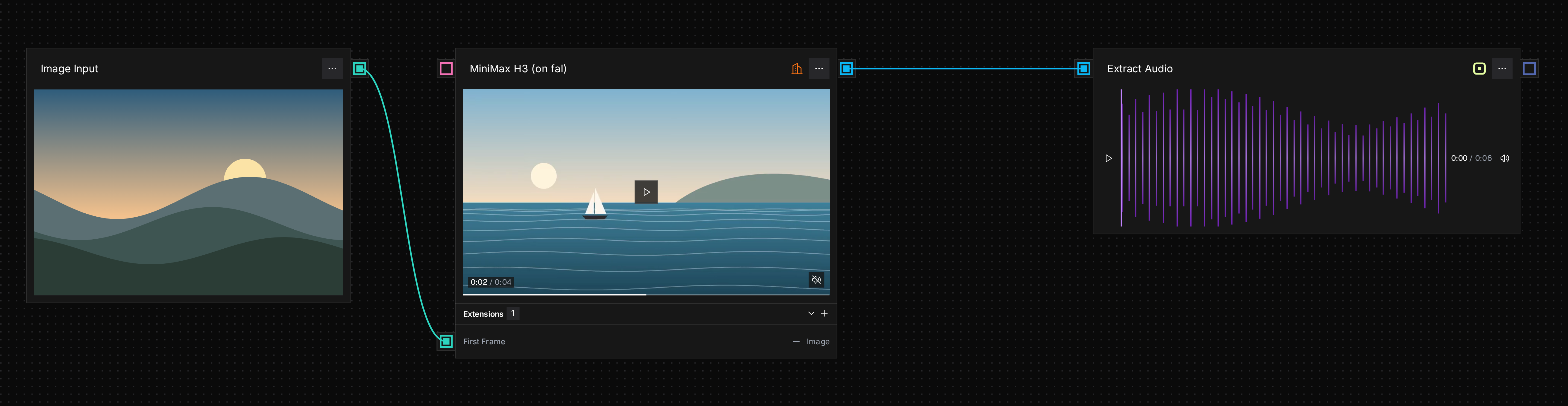
MiniMax H3 used to animate a landscape and extract its soundtrack. The image, video, and audio are illustrative placeholders.
Guide the opening and ending
- Add First Frame from Model Extensions.
- Connect an Image Input to First Frame.
- Describe how the shot moves in Prompt.
- To guide the ending too, add Last Frame and connect another image.
Last Frame requires First Frame. Keyframes determine the output canvas, so Studio disables Aspect Ratio while they are connected. Use keyframes or reference media in one Node; they cannot be combined.
Combine reference media
Add Image Reference or Video Reference from Model Extensions. You can then add Audio Reference. Explain in Prompt what each reference contributes, such as the subject from an image, camera movement from a video, or vocals from audio.
| Reference | Limits |
|---|---|
| Image | Up to 9 images. |
| Video | Up to 3 clips. Each must be 2–15 seconds; their combined duration must be at most 15 seconds. |
| Audio | Up to 3 clips. Each must be 2–15 seconds; their combined duration must be at most 15 seconds. Requires at least one image or video reference. |
Use at most 12 references across all three types. Studio rejects combinations outside these limits. If a reference's duration is not known yet, Studio warns that it must meet the limits when it becomes available.
Add a LoRA
A LoRA is a set of trained model adjustments that can guide style, character, or motion. Use weights compatible with H3; see fal's H3 LoRA reference.
- Add LoRA from Model Extensions.
- Enter an HTTPS address for the weights, or a Hugging Face repository name in the form
owner/repo. - If the repository contains several weight files, specify the filename. Otherwise, leave its selection on Automatic.
- Set the strength from 0 to 4.
You can add up to four LoRAs with text, keyframes, or reference media. They do not count toward the 12-reference limit. Configure them in the sidebar; these settings cannot become wired inputs.
Studio rejects an empty address, an HTTP address, a local file path, or an incomplete repository name. Repository names must contain exactly two parts, with no spaces or .git suffix. A valid address does not guarantee that the weights exist or work with H3; fal must be able to load them.
Adjust the generation
Resolution sets the output size tier. The 2K and 4K modes upscale a 768P base result, according to fal's H3 documentation.
Prompt Expansion controls how the model expands your description before generation. Studio offers fast and balanced. Seed lets you keep a fixed starting seed or request a new one for each Run.
Prompt accepts String values. It must contain 1–50,000 characters; an empty or longer prompt fails when submitted.
Related pages
- MiniMax H3 Max
- Model Extensions
- Set Video Audio — replace the soundtrack with a chosen recording.
- Resize Video — change the output dimensions.