Mask Image
Mask Image keeps the parts of an image covered by a mask and replaces the rest with a chosen background. Use a mask from SAM3 Image, Draw Mask, or an image file.
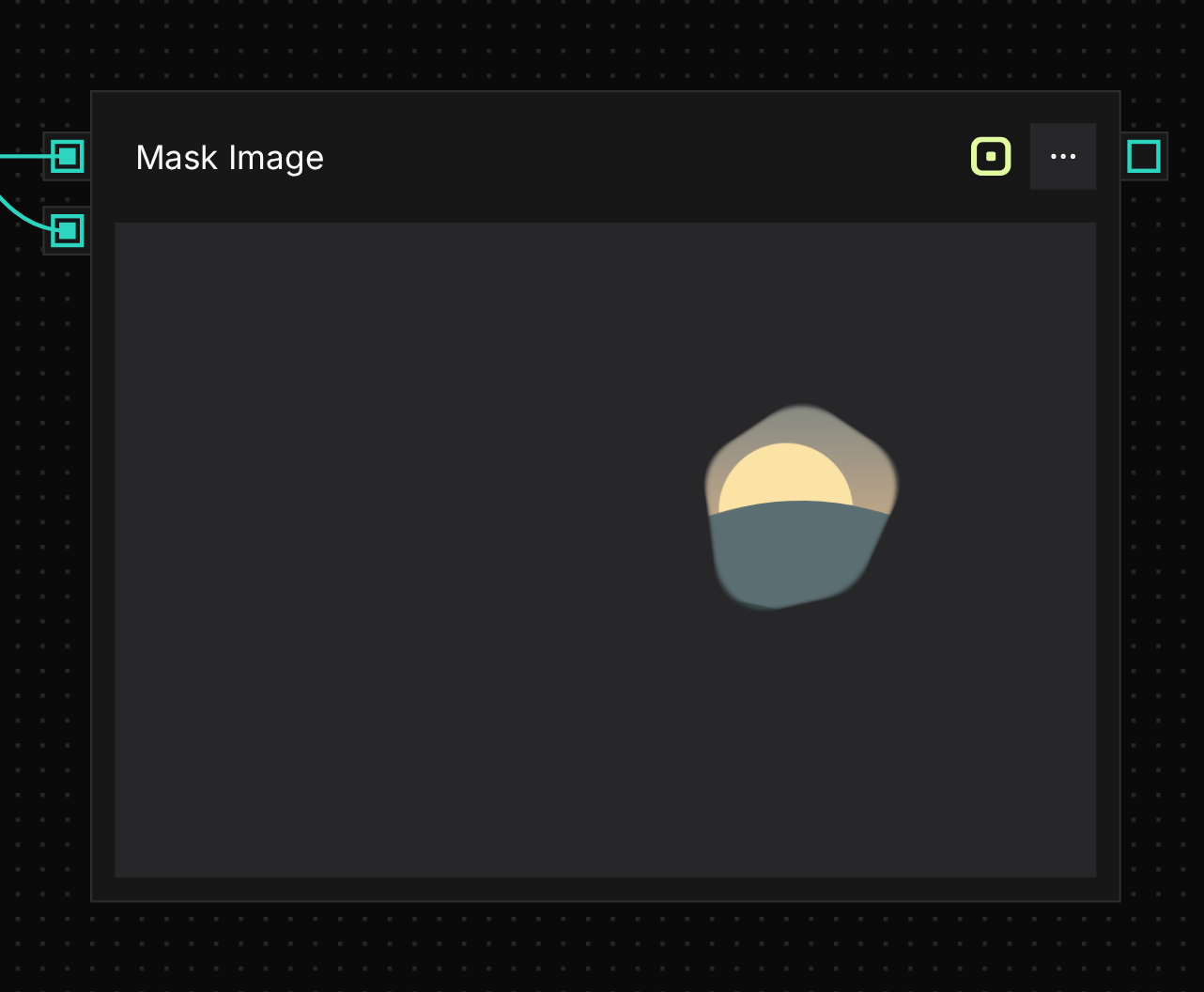
The cutout uses illustrative media and a simulated masking result.
Apply a mask
- Connect your source image to Image.
- Connect the mask to Mask.
- Select Mask Image and choose White, Black, or Transparent for Background.
- Run the Node to produce the masked Image.
White areas of a grayscale mask keep the source. Black areas show the background. Gray areas blend the two, which preserves soft edges.
Choose the background
| Background | Result |
|---|---|
| White | Uncovered areas become white. The output is an RGB image. |
| Black | Uncovered areas become black. The output is an RGB image. |
| Transparent | Uncovered areas become transparent. The output is an RGBA image with an alpha channel. |
If the source already has transparent areas, Mask Image preserves their effect: it combines the source's transparency with the mask. White and Black then flatten the result onto the chosen color.
Turn on Hard-binary masking to make mask coverage either fully on or fully off. Coverage of at least 0.5 is kept; lower coverage is removed. This sharpens the mask but leaves any partial transparency already in the source intact.
Check the mask
Both inputs accept Image values. How an image controls coverage depends on its channels:
| Mask image | Coverage comes from |
|---|---|
| Grayscale | The brightness of its single channel. |
| RGB | The average of red, green, and blue. |
| RGBA | The alpha channel; the visible colors are ignored. |
An RGBA file can look black and white while remaining fully opaque. Used as a mask, that file keeps the whole source. Use a grayscale or RGB mask for brightness-based coverage, or give the RGBA file the transparency you want.
Match the dimensions
Mask Image preserves the source image's width and height. A mask with different dimensions produces a warning: Studio aligns it at the top-left, crops excess pixels, and fills any missing area with zero coverage. It does not stretch the mask to fit.
Use Resize Image when you need to match a mask to the source dimensions. General Image limits apply to both inputs and the output; Mask Image adds no smaller dimension limit of its own.
Make a sunset cutout
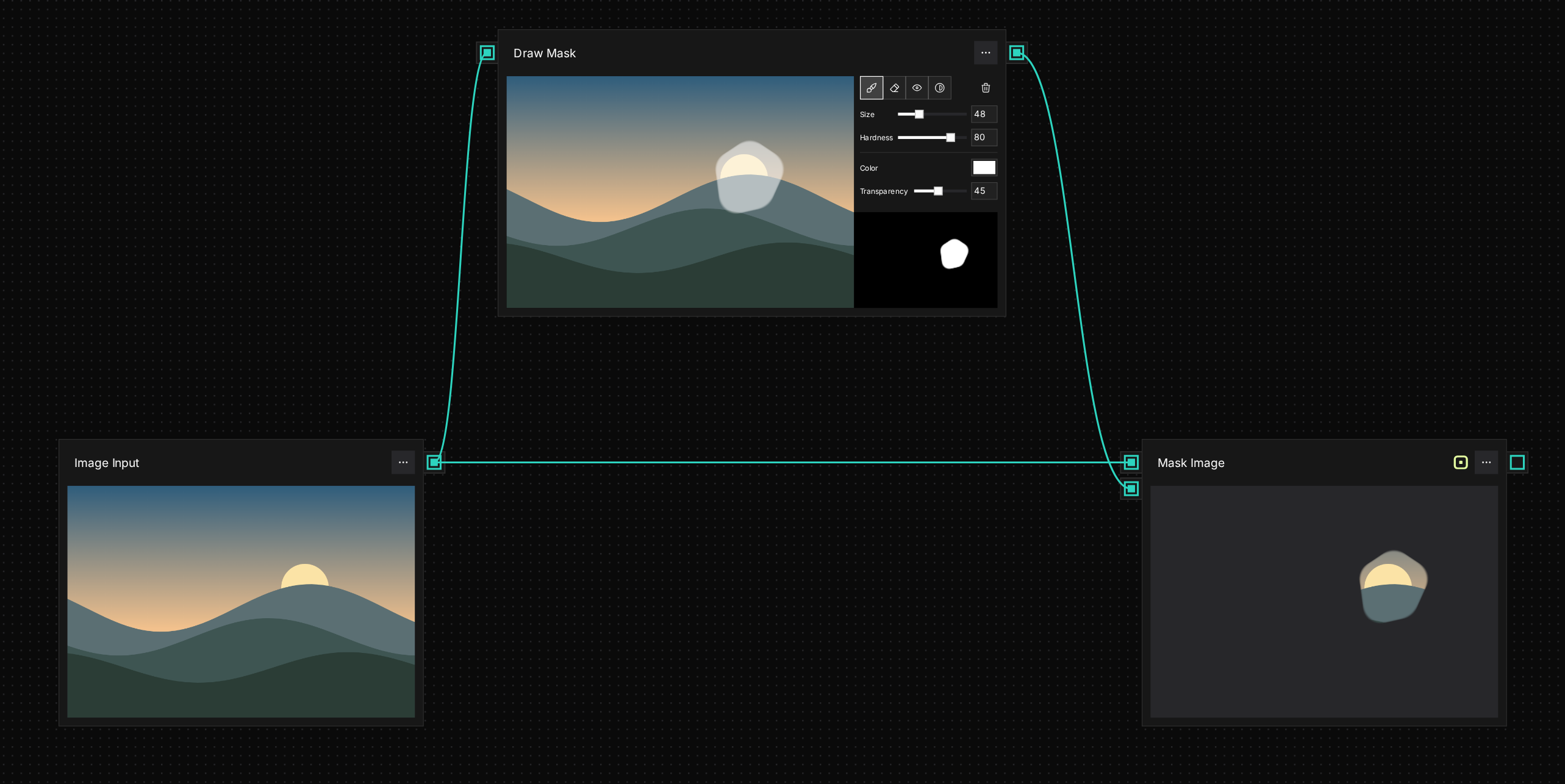
Mask Image used to isolate a sunset detail with Draw Mask; the media and masking result are illustrative.