GPT Image 2.5 Sunburst (on fal)
GPT Image 2.5 Sunburst creates or edits an image from a text prompt. With only Prompt connected, it creates a new image. Add reference images to guide an edit.
Studio uses fal's Sunburst text-to-image and Sunburst editing endpoints.
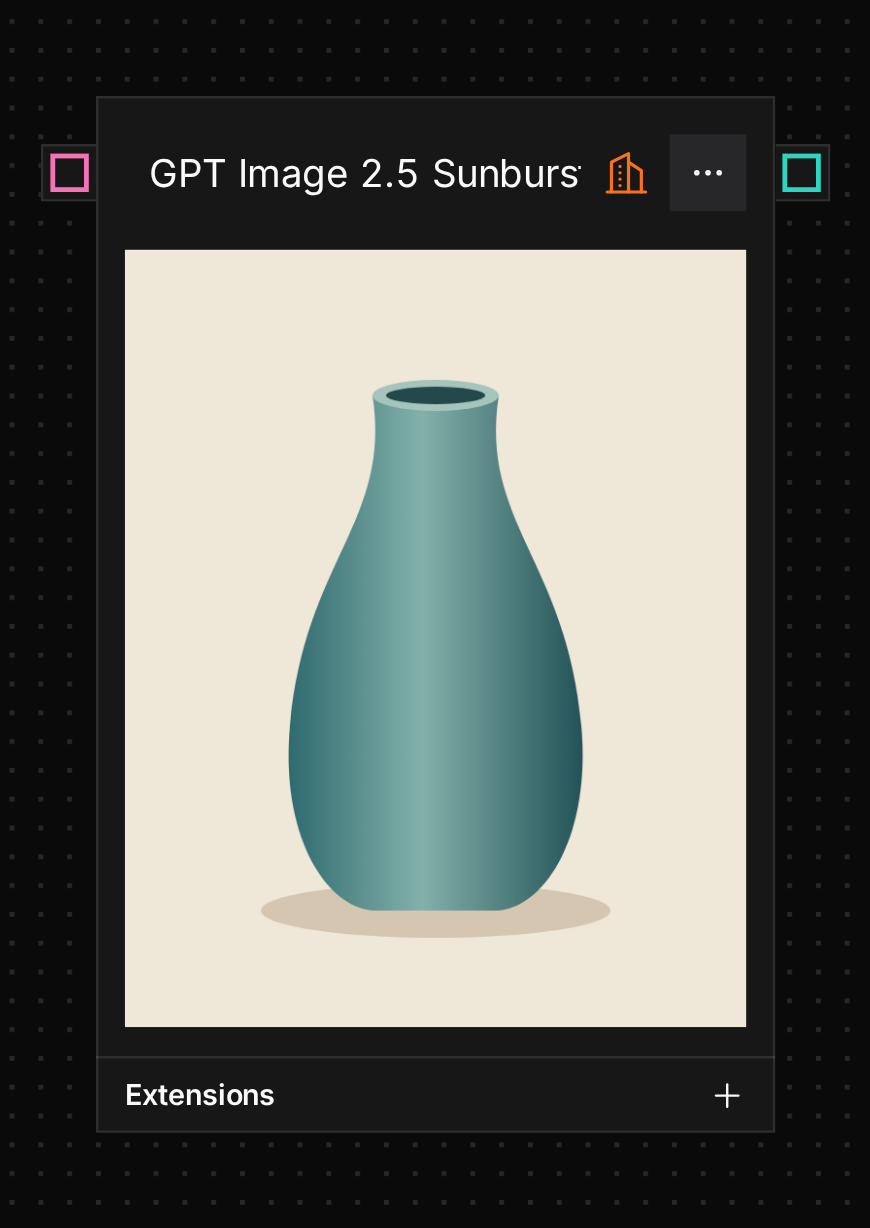
The Node returns one image. The preview is illustrative.
Create an image
- Connect Text Input to Prompt.
- Describe the subject, composition, and style you want.
- Set Width and Height in the sidebar.
- Choose Quality and Background.
- Select Run.
For example, try “A teal ceramic vase, centered, full object visible, plain cream background.” Connect the resulting Image to another Node to use it as a reference or turn it into a 3D object.
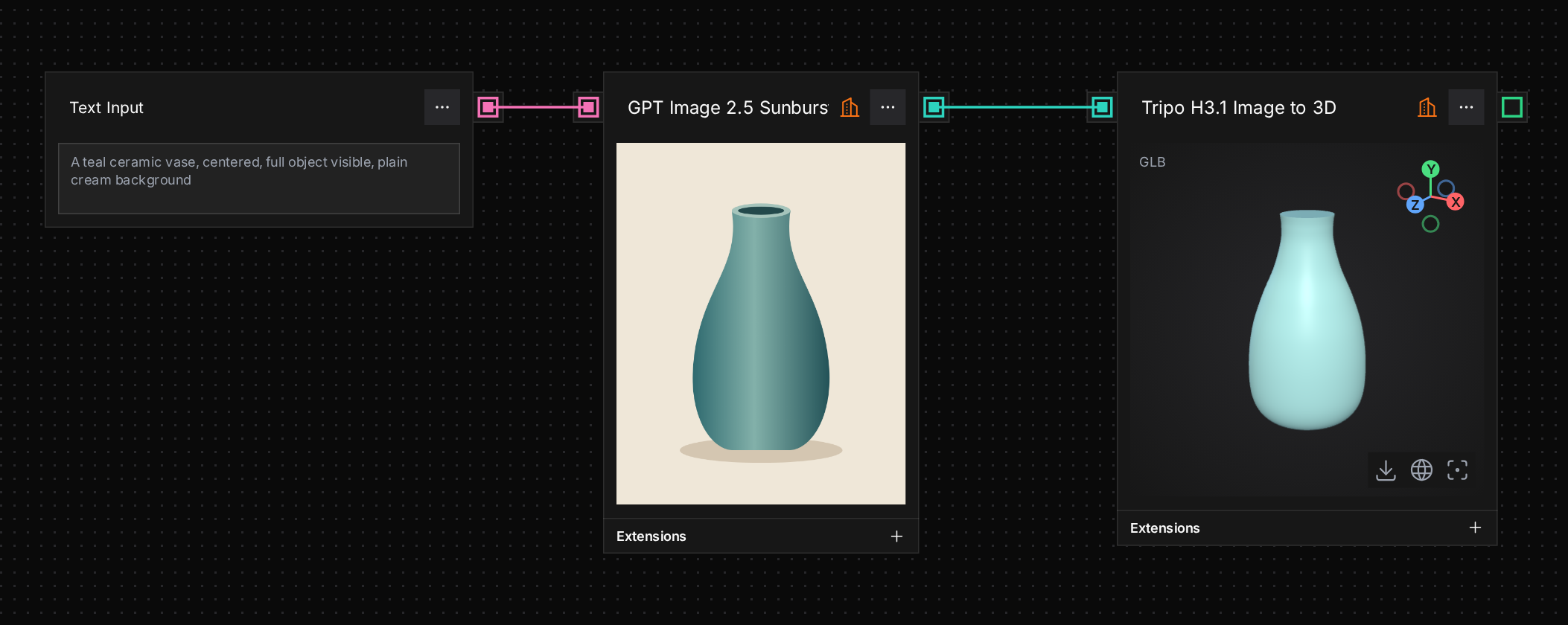
GPT Image 2.5 Sunburst used to design a vase for a 3D model. The image and 3D result are illustrative.
Edit with references
- Add Image Reference from the + menu in the Node's Extensions header.
- Connect Image Input or another image-producing Node to the new row.
- Describe what to change and what to keep in Prompt.
- Select Run.
Add up to 16 reference rows. Their order sets the order of the images sent to the model. See Model Extensions for adding and moving rows.
To guide a local edit, add Mask and connect a mask image from Draw Mask. A mask requires at least one connected reference and applies to the first connected reference. Studio resizes it to match that reference, including any reduction of the reference image. Start with a mask drawn over the same image so the regions line up.
Inputs and outputs
| Port | Type | Use |
|---|---|---|
| Prompt | String | Required description of the new image or edit. |
| Image Reference 1–16 | Image | Optional ordered images added through Model Extensions. |
| Mask | Image | One optional mask for the first connected reference. |
| Image | Image | One generated or edited image. |
Each reference is reduced proportionally if it exceeds 3,840 pixels on its longest side or 8,294,400 pixels in total. This limit applies to each reference separately.
Settings and limits
| Setting | What it does |
|---|---|
| Width, Height | Set the output size in pixels. Studio rounds each dimension to the nearest multiple of 16, with halfway values rounded up. |
| Quality | Set the model's generation quality. Higher settings use more image-generation tokens. |
| Background | Opaque produces an RGB image. Transparent produces an RGBA image with an alpha channel. |
| Max Prompt Length | Keep the first 1–10,000 characters of the prompt, up to your chosen limit. Put essential instructions first. |
After rounding, the output size must meet all three rules:
- The longest side is at most 3,840 pixels.
- Width × height is between 655,360 and 8,294,400 pixels, inclusive.
- The longest side is at most three times the shortest side.
For example, 1,920 × 1,080 becomes 1,920 × 1,088. A 3,840 × 2,160 image is valid, but 3,840 × 2,176 exceeds the pixel limit. A 512 × 512 image is too small.
Studio warns when it rounds output dimensions, reduces a reference, or resizes a mask. Invalid output sizes and a mask without a reference block the Run. The output size comes from Width and Height, even when references are connected.