Resize Image
Resize Image changes an image to the width and height you choose. Use it to prepare an image for another Node or to make an output at a specific size.
The Node resizes the whole image to those dimensions. If the new proportions differ from the source, the image stretches rather than adding borders or cropping.
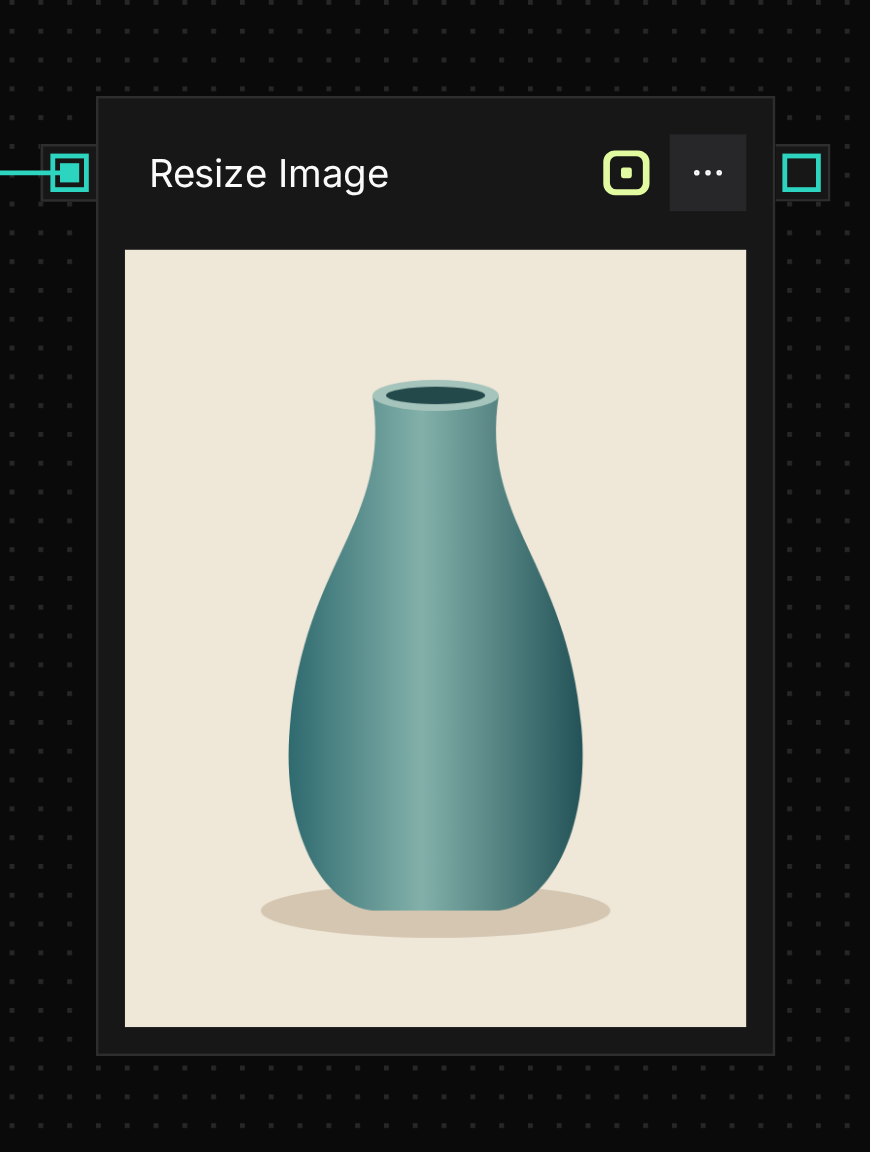
Resize Image with an illustrative resized output.
Resize an image
- Add Resize Image to your Graph.
- Connect an image from Image Input or another Node to Image.
- Select Resize Image to open its settings.
- If the settings show Aspect Ratio and Size, choose Switch to width and height from the settings group menu.
- Set Width to the output width in pixels.
- Set Height to the output height in pixels.
- Select Run Selected.
For example, set Width to 640 and Height to 360 to make a 640 × 360 image. A 1280 × 720 source keeps its proportions at this size. A square source stretches horizontally.
Width and Height
Both settings use Integers. Studio requires images to be at least 32 pixels on each side, so a smaller size blocks the Run.
Each setting accepts values up to 4,294,967,295, but this is not a usable image-size limit. The Image limits and overall Run resource limits also apply. A request that exceeds those limits cannot run; reduce the dimensions before trying again.
To keep the source proportions, multiply both source dimensions by the same amount. For example, halve both dimensions to make an image half as wide and half as tall.
Inputs and outputs
| Inputs |
|---|
| Image Image The source image to resize. |
| Outputs |
|---|
| Image Image The image at your chosen width and height. |
The output keeps the source's color channels, including its transparency channel when present. Connect it to another Node that accepts an image.
Prepare an image for 3D generation
Connect the resized image to Tripo H3.1 Image to 3D to prepare an object reference at a chosen size. Keep the source proportions so the object is not stretched before it reaches the model.
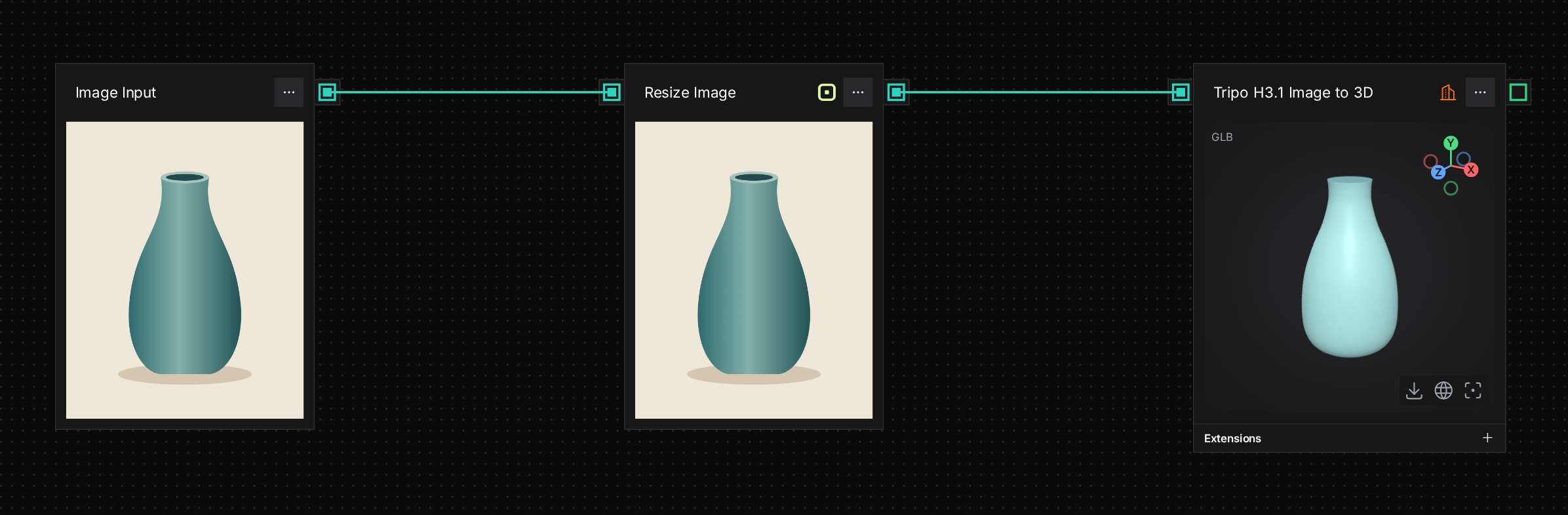
Resize Image used to prepare a vase reference for 3D generation; the media and outputs are illustrative.
Related pages
- Image — image values and shared limits.
- Image Input — add a source image.
- Resize Video — change the dimensions of video frames.
- Working with Nodes — connect Nodes and run them.