Image Input
Image Input brings an image file into your Graph. Connect it to another Node to paint a mask, resize the image, or use it as a model reference.
Choose a file or drop one onto the Node. Studio prepares the image and shows a preview.
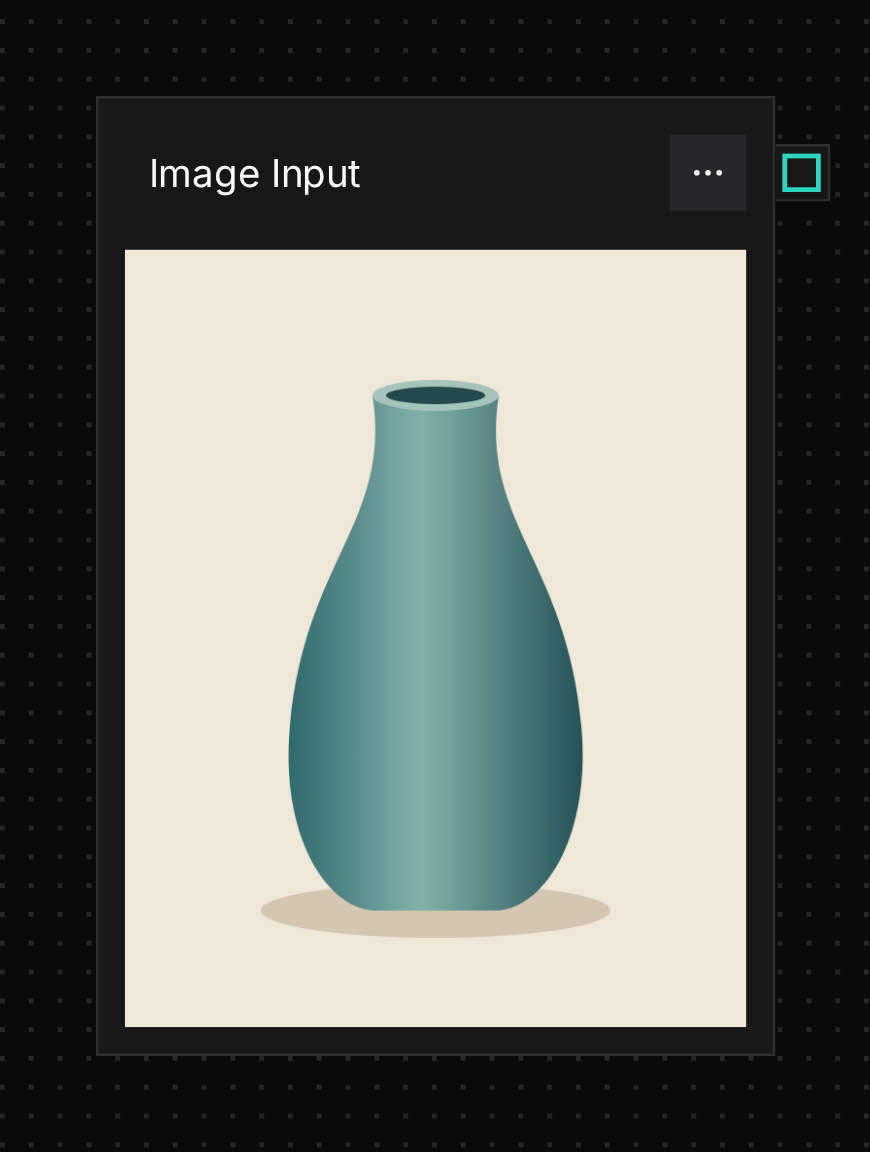
The preview shows the imported image. Connect the output on the right to use it in another Node (illustrative media).
Add an image
- Add Image Input to your Graph.
- Select Choose file inside the Node.
- Choose an image file from your computer.
- Wait for Studio to finish preparing the image.
- Connect Image to an image input on another Node.
You can also drop a local image file onto Image Input. Dropping an image link from a website does not import the image; save the file to your computer first.
Replace an image
Drop another local image file onto the Node to replace its image. Existing connections use the replacement in the next Run.
To use the file picker instead:
- Right-click the image preview.
- Select Remove media.
- Select Choose file.
- Choose the replacement file.
Use an image as a 3D reference
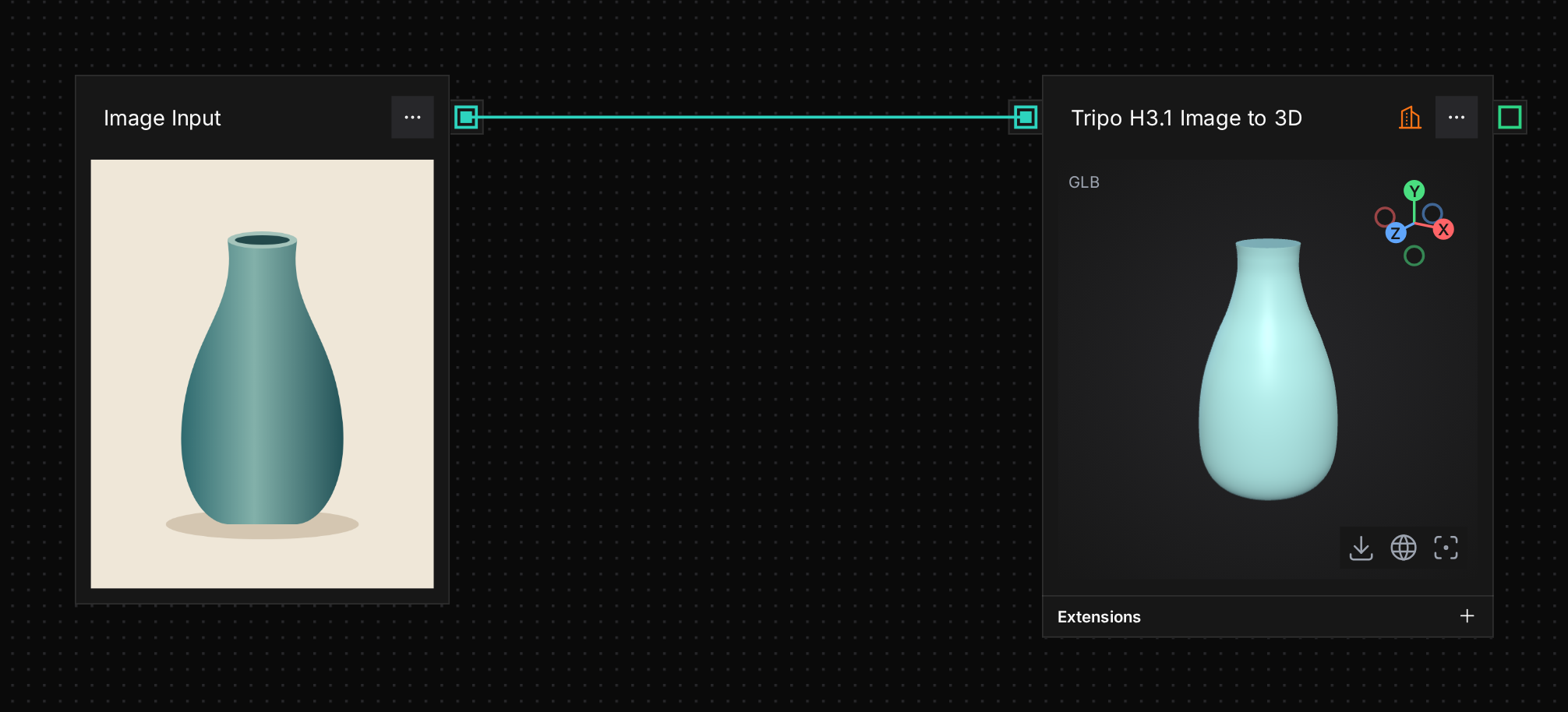
Image Input used to turn a vase reference into a 3D model with Tripo H3.1 Image to 3D (illustrative media and output).
Inputs and outputs
Image Input has no input ports.
| Output | Type | Value |
|---|---|---|
| Image | Image | The prepared image |
| Width | Integer | Image width in pixels; expose it from the sidebar |
| Height | Integer | Image height in pixels; expose it from the sidebar |
The dimension outputs describe the prepared image; use Resize Image to change its size.
Supported files and limits
Studio requires images to be at least 32 pixels on each side for a Run. The receiving Node can impose further size limits. See Image for shared image constraints.
Studio uses image formats your browser can decode and converts them to PNG when needed. Animated PNG files are rejected because Image Input supplies a still image. If preparation fails, check the error and try a still PNG or JPEG file.
If a replacement file fails to prepare, Studio keeps the previous image.
Related pages
- Draw Mask — paint the area you want to use.
- Resize Image — change the image dimensions.
- Tripo H3.1 Image to 3D — create a 3D model from an image.