Kling 4 (on fal)
Kling 4 creates a video from a prompt. Add visual references to guide the result, or connect an existing video to edit it.
Studio uses Kuaishou's Kling 4.0 through fal.
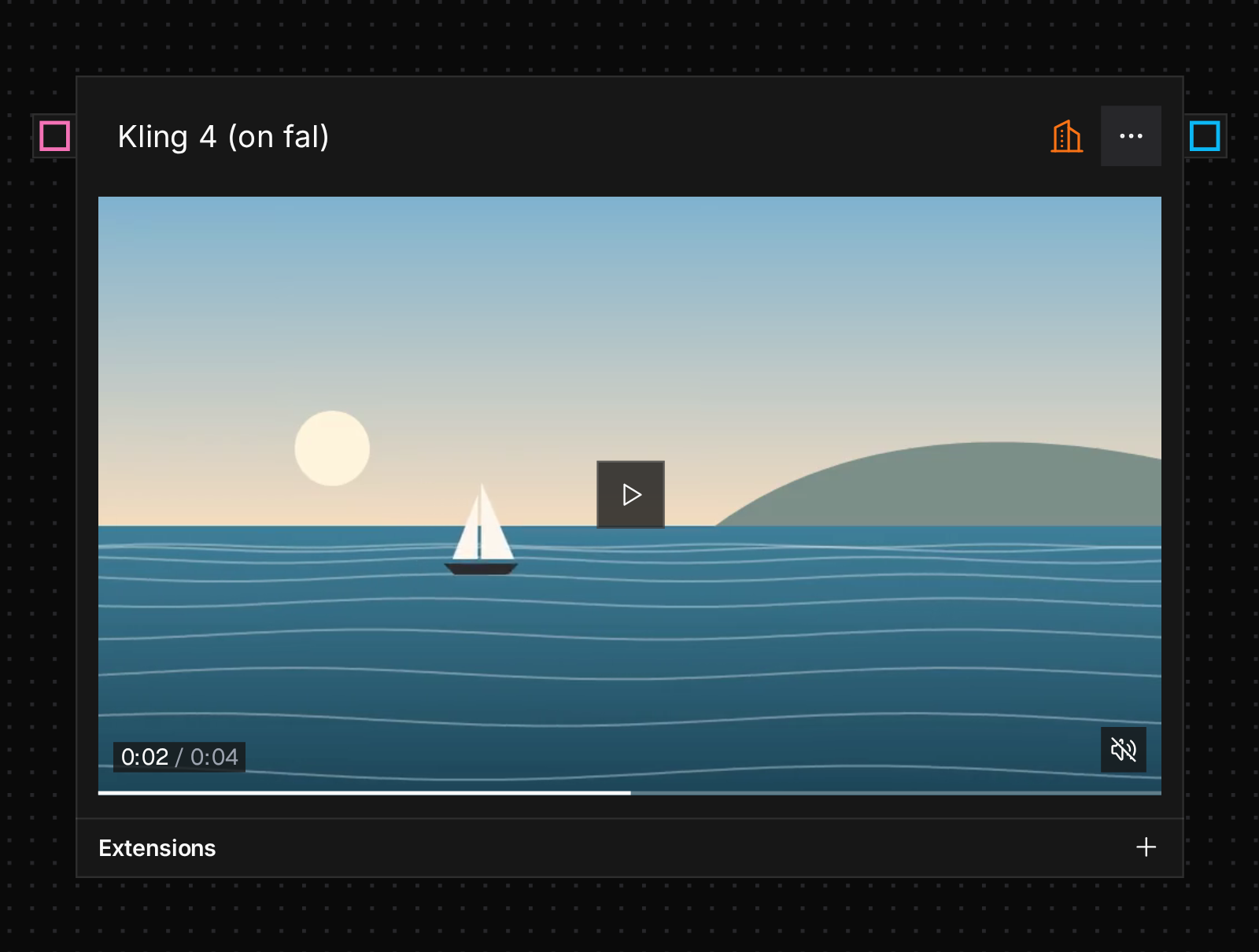
The coastal clip is illustrative placeholder media, not a checked model result.
Generate a video
- Add Kling 4 (on fal) to your Graph.
- Connect Text Input to Prompt and describe the scene and movement.
- Choose Duration, Resolution, and Aspect Ratio in the Node's settings.
- Run the Node and play its Video output.
For a single shot, choose a whole-number duration from 3 to 30 seconds. Prompt-only generation needs an explicit aspect ratio; auto needs visual input. The Video output keeps any audio returned by the model.
Guide the scene
Add optional inputs from the Extensions menu. Model Extensions explains how to add and connect them.
| Extension | What to supply |
|---|---|
| First Frame | The image to start from. |
| Last Frame | The image to finish on. It can be used without First Frame. |
| Keyframe | An intermediate image. Add up to eight in order. |
| Image Reference | An image to guide the generated scene. |
| Video Reference | A clip to guide the generated scene. |
| Subject (image) | A main subject image and at least one of its three additional view inputs. |
| Subject (video) | A clip showing the subject. |
Use either images or a video for each subject. A main subject image alone is incomplete; connect one to three additional views too.
Plan several shots
- Use Prompt and Duration for the first shot.
- Add Multi-shot Prompt for the next shot.
- Supply that shot's prompt and set its duration.
- Add more shots as needed, then run the Node.
Each shot needs both a prompt and a whole-number duration from 1 to 30 seconds. The combined duration must be 3 to 30 seconds. For example, a one-second opening followed by a four-second shot is valid. Studio supports at most 30 shots, including the first.
Edit a video
- Add Edit Video from the Extensions menu.
- Connect the source clip to Edit Video.
- Describe the change in Prompt.
- Set Edit Duration to a whole number from 3 to 30 seconds, or choose Match source duration.
- Run the Node.
Editing uses Edit Duration instead of Duration. You can combine editing with image references, video references, and subjects. First Frame, Last Frame, Keyframe, and Multi-shot Prompt cannot be combined with Edit Video.
Check reference limits
| Reference group | Limit |
|---|---|
| First Frame, Last Frame, Keyframes, and Image References combined | 10 images. |
| Video References and the Edit Video source combined | 5 videos. |
| Subjects | 7 total, including at most 3 video subjects. |
| All reference groups together | 15 entries. Each subject counts as one entry, including its additional image views. |
The combined length of all input videos must be at most 30 seconds. This includes the edit source, video references, and subject videos.
Check media requirements
| Input | Requirements |
|---|---|
| Images, including subject views | At least 300 pixels on each side; at most 8,300,000 pixels in total. |
| Video references and edit source | From 3 to 30 seconds long. |
| Subject videos | From 3 to 8 seconds long. |
| Every input video | Each side from 700 to 4,553 pixels; at most 2,100,000 pixels in total; frame rate from 23.9 to 60 fps. |
| Every input image and video | Width divided by height from 0.4 to 2.5. |
All limits apply together. A clip can meet the duration limit and still fail because its dimensions or frame rate are unsuitable. Resize media first when needed; Resize Video changes dimensions but keeps the frame rate.
Studio checks these requirements before running the Node. When a connected result's properties are not known yet, it warns and checks them once that result is available. See Image and Video for shared limits.
Score a coastal scene
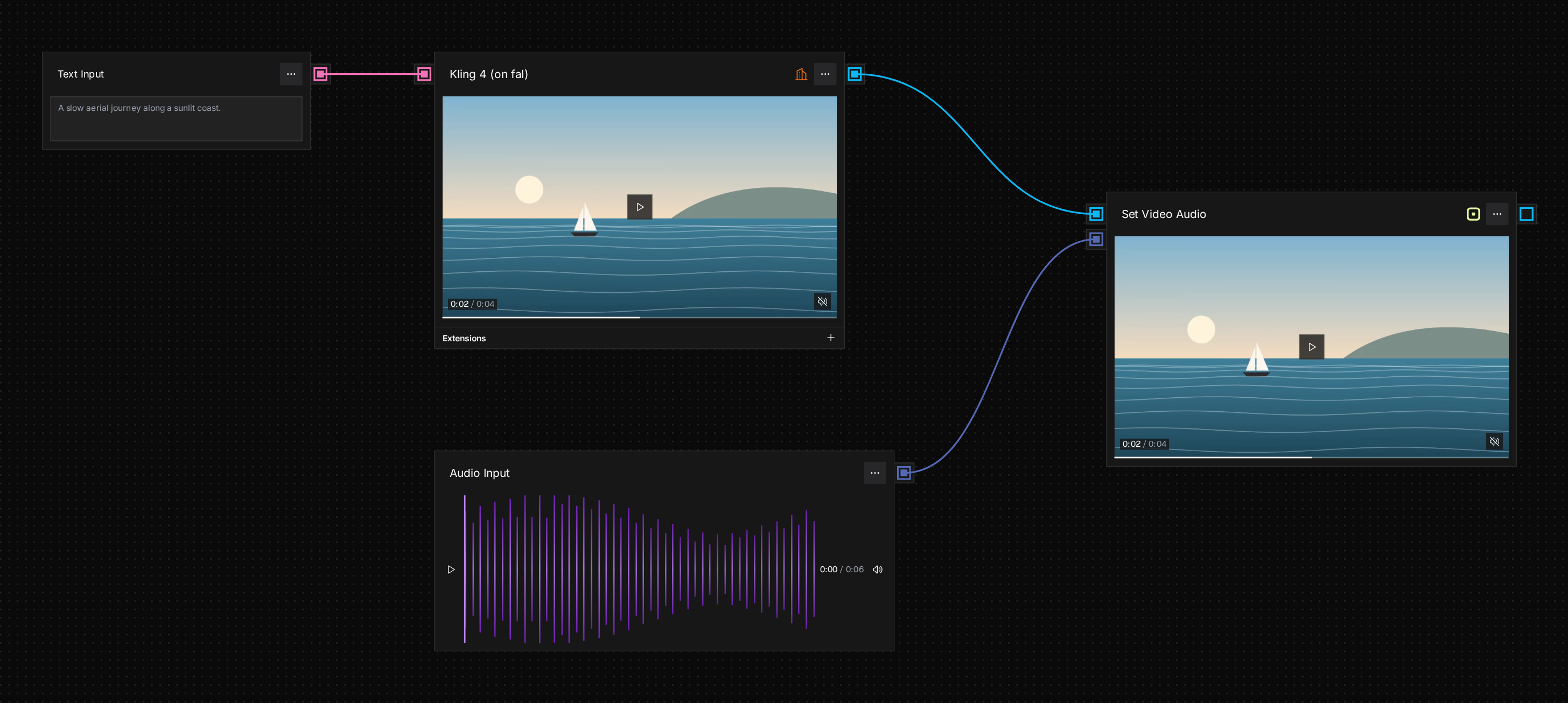
Kling 4 used to make a coastal scene with a separate musical soundtrack; all media and results are illustrative.