Flux 3 Video (on fal)
Flux 3 Video creates a video from a prompt. With no Model Extensions, it generates the scene from your words; add images to guide particular moments or a video to continue a clip.
Studio uses Black Forest Labs' FLUX 3 video model through fal.
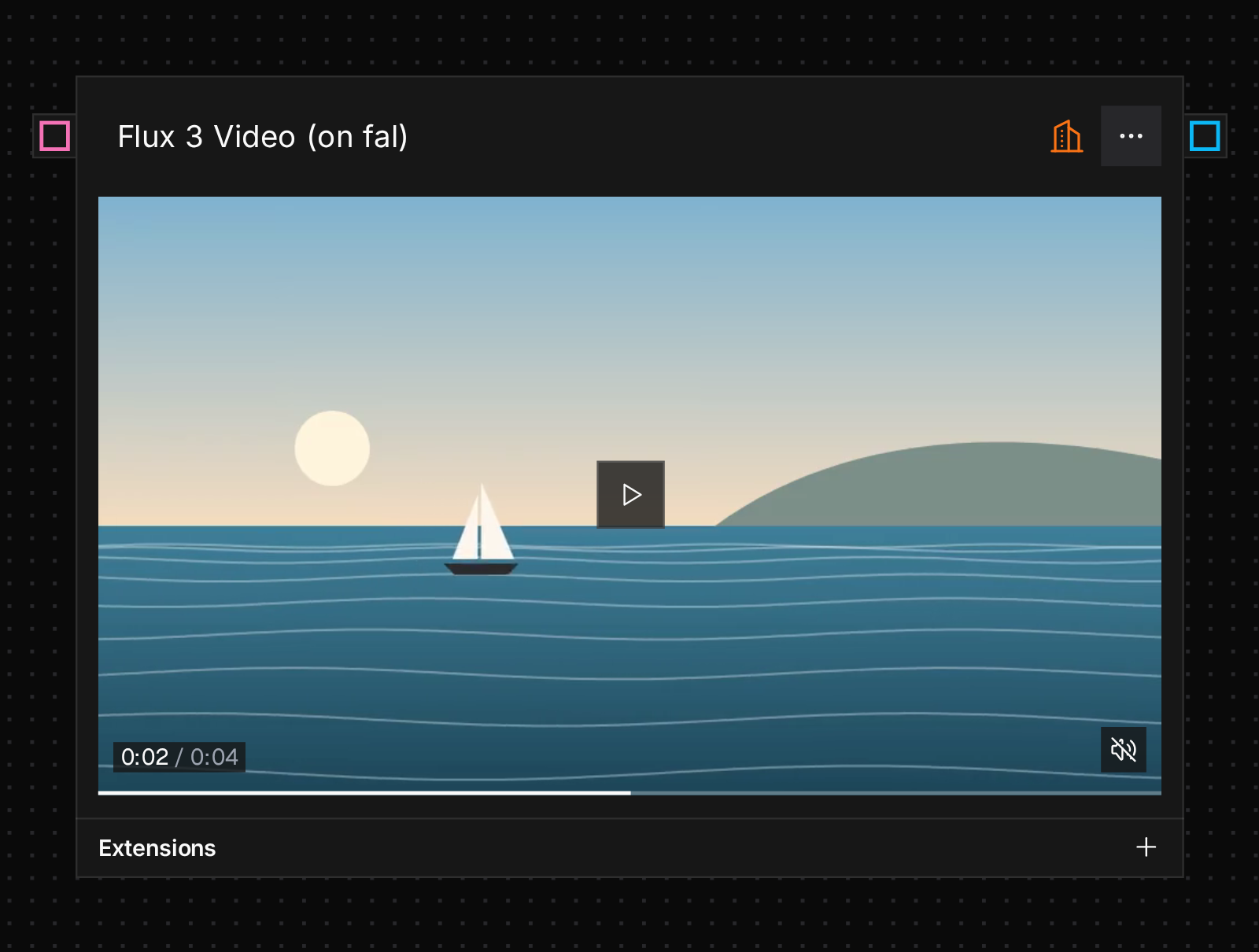
The video is an illustrative placeholder, not a checked model result.
Generate a clip
- Add Flux 3 Video (on fal) to your Graph.
- Connect Text Input to Prompt and describe the scene and motion.
- Select the Node and choose Resolution, Aspect Ratio, and Duration.
- Turn on Generate Audio if you want the model to create a soundtrack.
- Run the Node and inspect its Video output.
The result can feed Resize Video, Extract Audio, or another Node that accepts Video. Use Set Video Audio to replace its soundtrack with your own recording.
Guide the video with images
- Add a Keyframe from the Extensions menu.
- Connect an image to its Keyframe input.
- Set that keyframe's time in the sidebar.
- Add more Keyframes to guide later moments, then run the Node.
You can add up to 10 Keyframes. A single image at time zero guides the opening frame. For several images or a later keyframe, choose an explicit Duration instead of Auto duration.
Times are in seconds and must be finite, from 0 to 20, and no later than the requested duration. Studio rounds each time to the nearest frame at 24 fps. Two times that round to the same frame are rejected, even if the numbers differ. For example, use times 0, 2, and 5 for three keyframes in a five-second clip.
Each keyframe needs a connected image. If you shorten the duration, check that every keyframe still falls within it.
Continue a clip
- Remove any Keyframe extensions.
- Add Extend Video and connect a clip to its input.
- Describe what should happen next in Prompt.
- Choose the generation settings and run the Node.
Keyframes and Extend Video are separate modes; they cannot be combined. The output is the new continuation, rather than the original clip joined to it.
Studio keeps the first 15 seconds of the source clip. If your file is longer, continuation is guided by the end of that retained section. Each source frame must last no more than 15 seconds. The shared Video limits also apply.
The fal continuation endpoint accepts requested durations from 5 to 20 seconds or Auto. It requires the prepared source MP4 to be under 50 MB; a large clip can still exceed that file limit after preparation.
Size, timing, and audio
| Control or limit | What to expect |
|---|---|
| Duration | Request 5–20 whole seconds, or let Auto duration choose. Auto accepts no keyframes or a single keyframe at time zero. |
| Resolution and Aspect Ratio | Together choose the output canvas. An explicit ratio takes priority over the source or keyframe shape. Auto dimensions are estimated until the result arrives. |
| Generate Audio | Requests a soundtrack in the generated Video. Turn it off for a silent result. |
| Input images and video frames | Studio reduces inputs larger than 4,000,000 pixels while preserving their proportions. Smaller inputs keep their dimensions. |
Resolution labels describe a size class, so the pixel dimensions can differ from a conventional video format. For example, 1080p at 16:9 produces a planned canvas of 1,920 × 1,088, not 1,920 × 1,080.
Studio plans RGB output at 24 fps. A generated clip can include an extra endpoint frame, so its exact playback length can be slightly longer than the requested whole seconds. The returned video's measured timing is used after the Run.
Create a reusable atmosphere track
Guide the opening of a scene with an image, then connect Video to Extract Audio to use its soundtrack separately.
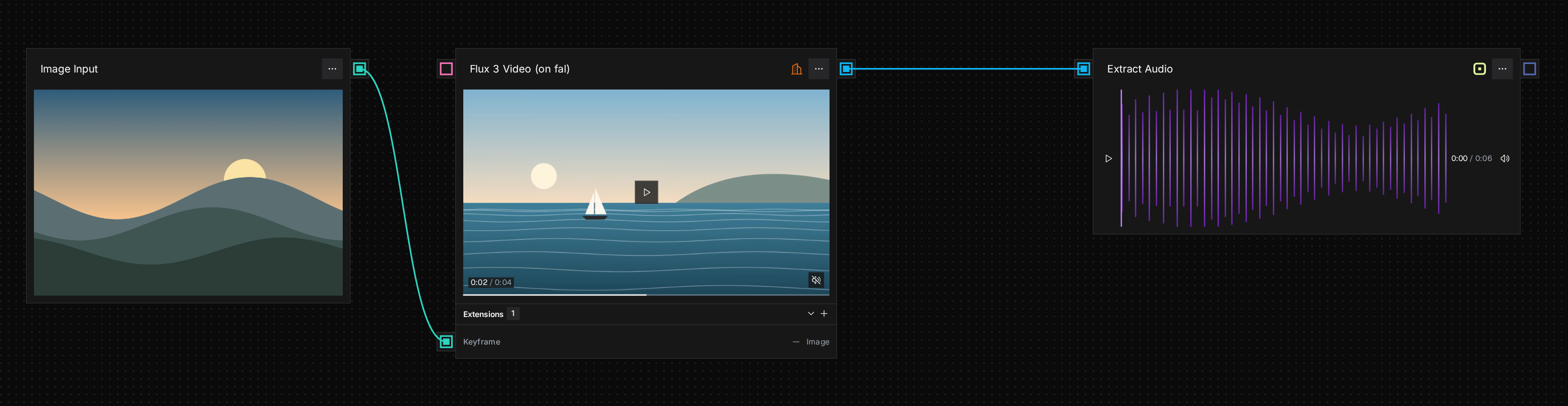
Flux 3 Video used to create an atmosphere track from an animated landscape; the image, video, and extracted audio are illustrative.