Mask Video
Mask Video keeps the parts of a video marked by a mask and replaces the rest with white or black. White mask pixels keep the source picture, black pixels show the background, and gray pixels blend the two.
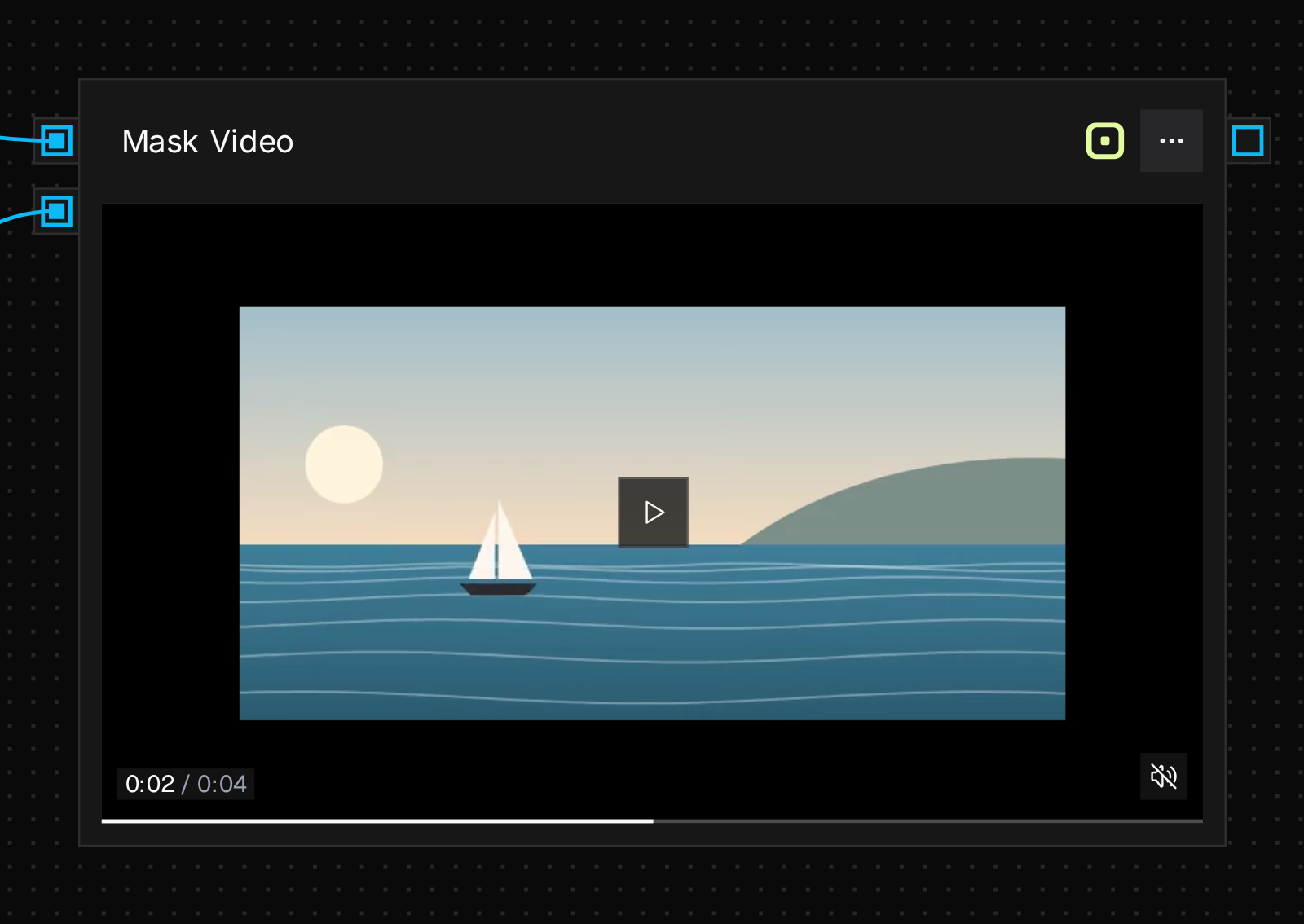
An illustrative masked clip with an opaque black background.
Apply a mask
- Connect the source clip to Video.
- Connect a mask clip to Mask. Use Video Input to import a mask you have prepared.
- Select Mask Video and choose White or Black for Background.
- Run the Node and inspect its Video output.
Use a mask prepared from the same source clip to keep the picture and mask aligned. SAM3 Video can produce a mask in deployments that expose that staging-only Node. A still image from Draw Mask cannot connect directly to Mask, which requires a Video.
Choose the edge treatment
Leave Hard-binary masking off to preserve soft mask edges. Gray coverage blends the source picture with the chosen background.
Turn it on for a hard edge: coverage of at least 0.5 keeps the source pixel, and lower coverage replaces it with the background. For an ordinary eight-bit grayscale mask, values from 128 through 255 are kept.
The background is opaque. Mask Video does not produce a transparent video.
Match the mask to the clip
Studio pairs the first source frame with the first mask frame, the second with the second, and so on. It does not retime the mask to match the source's frame rate.
| Difference | Result |
|---|---|
| Mask is smaller | Missing pixels show the background. The mask stays aligned to the top-left corner. |
| Mask is larger | Extra pixels on the right and bottom are cropped. |
| Mask has fewer frames | Remaining source frames show only the background. |
| Mask has extra frames | Extra mask frames are ignored. |
| Frame rates differ | Frames still match by index; Studio reports a warning. |
Studio also warns about different frame counts or dimensions. These differences do not resize, stretch, or repeat the mask.
Frame a coastal clip
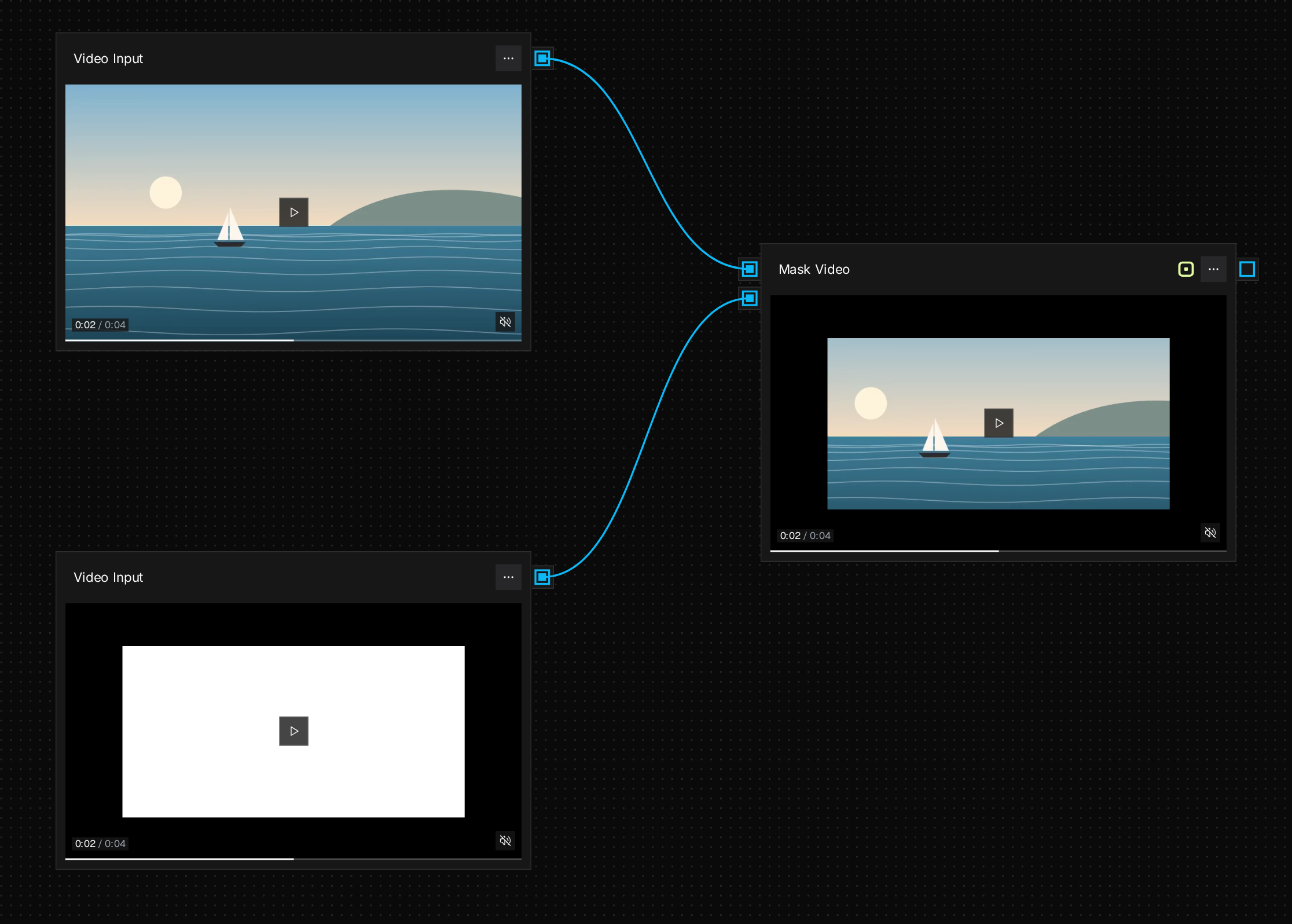
Mask Video used to frame a coastal clip against black; media and output are illustrative.
Inputs, output, and limits
| Port | Type | What it supplies |
|---|---|---|
| Video | Video input | The source picture and soundtrack. |
| Mask | Video input | Coverage for each source frame. Mask audio is ignored. |
| Video | Video output | The masked picture with the source dimensions, frame count, frame rate, and soundtrack. |
For a color mask, coverage is the average of its red, green, and blue channels. A black-and-white or grayscale mask makes the selected areas easier to predict. The output picture has three color channels.
The shared Video limits apply to both inputs. Mask Video adds no requirement that their dimensions, frame counts, or frame rates match; the table above explains how mismatches behave.
Related pages
- Video
- Video Input
- Mask Image
- Resize Video
- SAM3 Video — staging only.