Set Video Audio
Set Video Audio replaces a video's soundtrack with an Audio input. It keeps the video's frames and timing, and fits the replacement sound to the video's length.
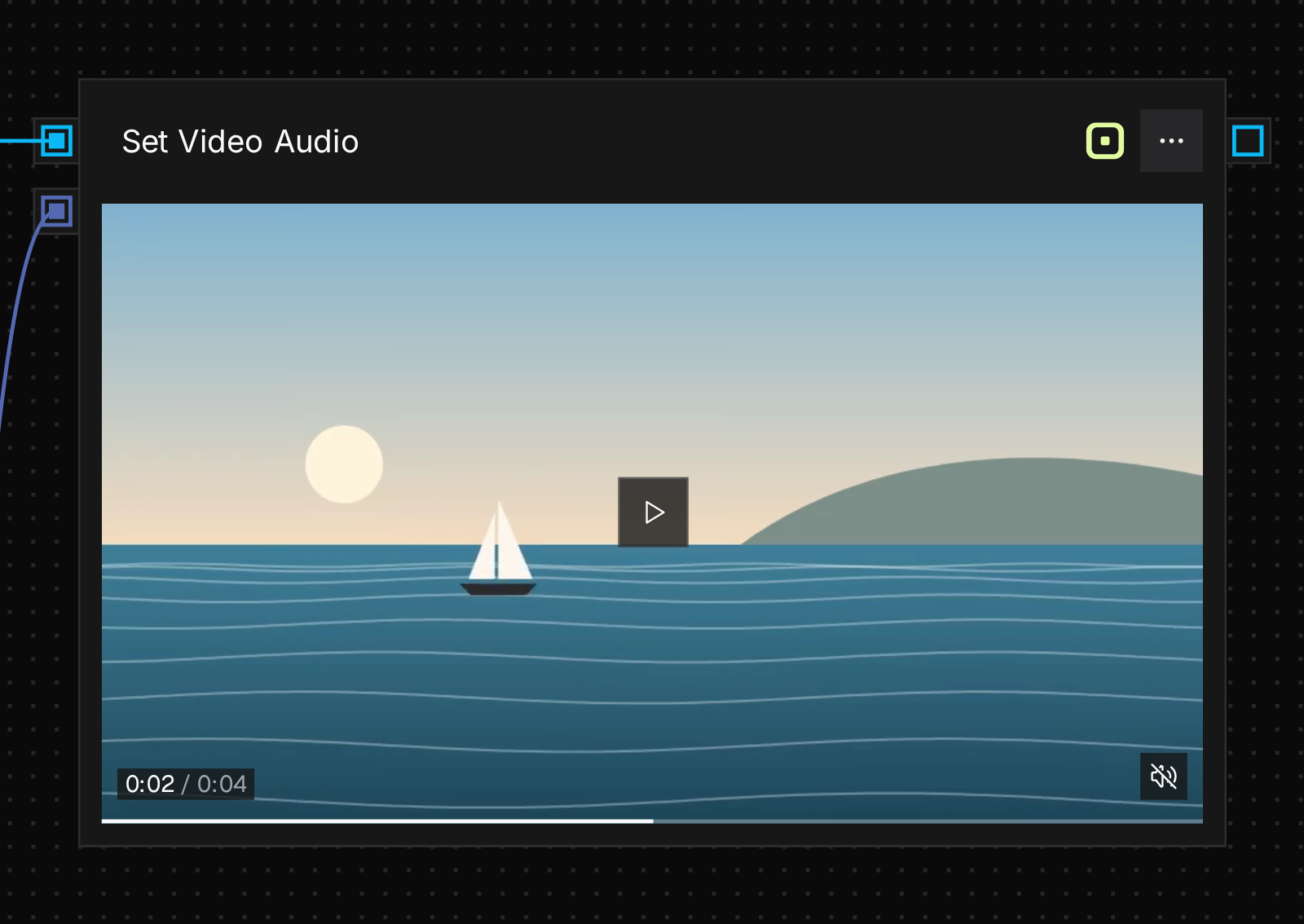
The coastal clip and replacement soundtrack are illustrative.
Replace a soundtrack
- Add Set Video Audio to your Graph.
- Connect the clip you want to keep to Video.
- Connect the replacement recording to Audio.
- Run the Node and play its Video output.
Use Video Input and Audio Input for files, or connect compatible outputs from other Nodes. For spoken narration, connect the Audio output from VoxCPM2.
Fit sound to the picture
The replacement starts at the beginning of the video. Studio fits it to the video's duration:
| Replacement recording | Result |
|---|---|
| Longer than the video | Studio cuts off the extra sound at the end. |
| Shorter than the video | Studio adds silence after the recording ends. |
| The same length | Studio uses the recording for the full video. |
For example, a six-second recording on a four-second clip uses the first four seconds. A two-second recording on the same clip is followed by two seconds of silence. The Node does not repeat the recording or stretch it to fill the gap.
Any original soundtrack is replaced, not mixed with the new one. To keep it for later, connect the source video to Extract Audio before replacing it.
Give a coastal clip a score
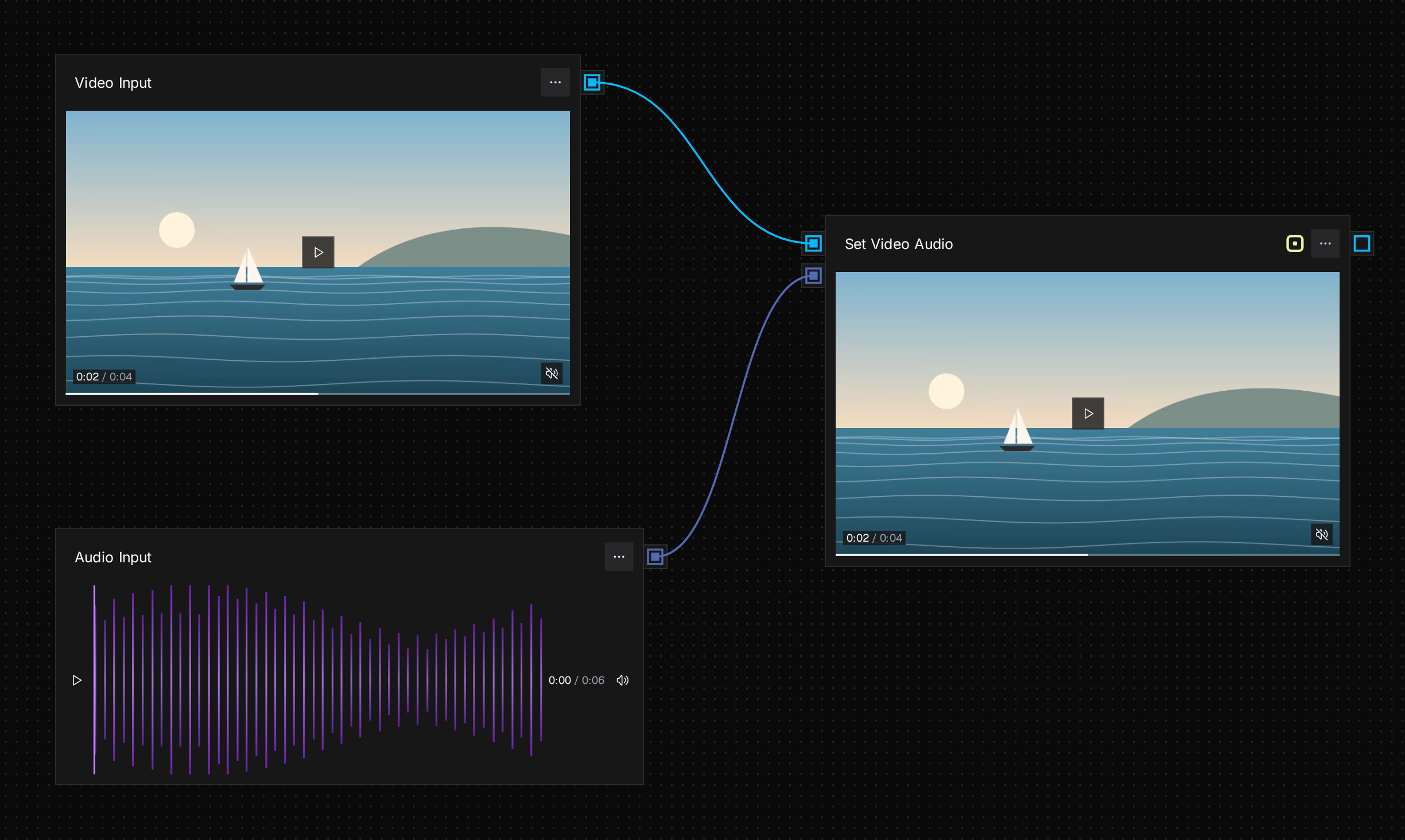
Set Video Audio used to give a coastal clip a musical score; the media and resulting soundtrack are illustrative.
Inputs, outputs, and limits
| Port | Type | What it supplies |
|---|---|---|
| Video | Video input | The picture and timing to keep. |
| Audio | Audio input | The replacement soundtrack. |
| Video | Video output | The original frames with the fitted replacement audio. |
Both inputs are required. The output keeps the source dimensions, frame count, frame order, frame rate, and color channels. This Node has no settings of its own and adds no narrower media limits; the shared Video, Audio, and value-size limits apply.