Video Input
Video Input brings a video file into your Graph. Use it to replace a soundtrack, resize frames, or extract audio.
Choose a local file or drop one onto the Node. Studio prepares the video and plays it in a looping preview.
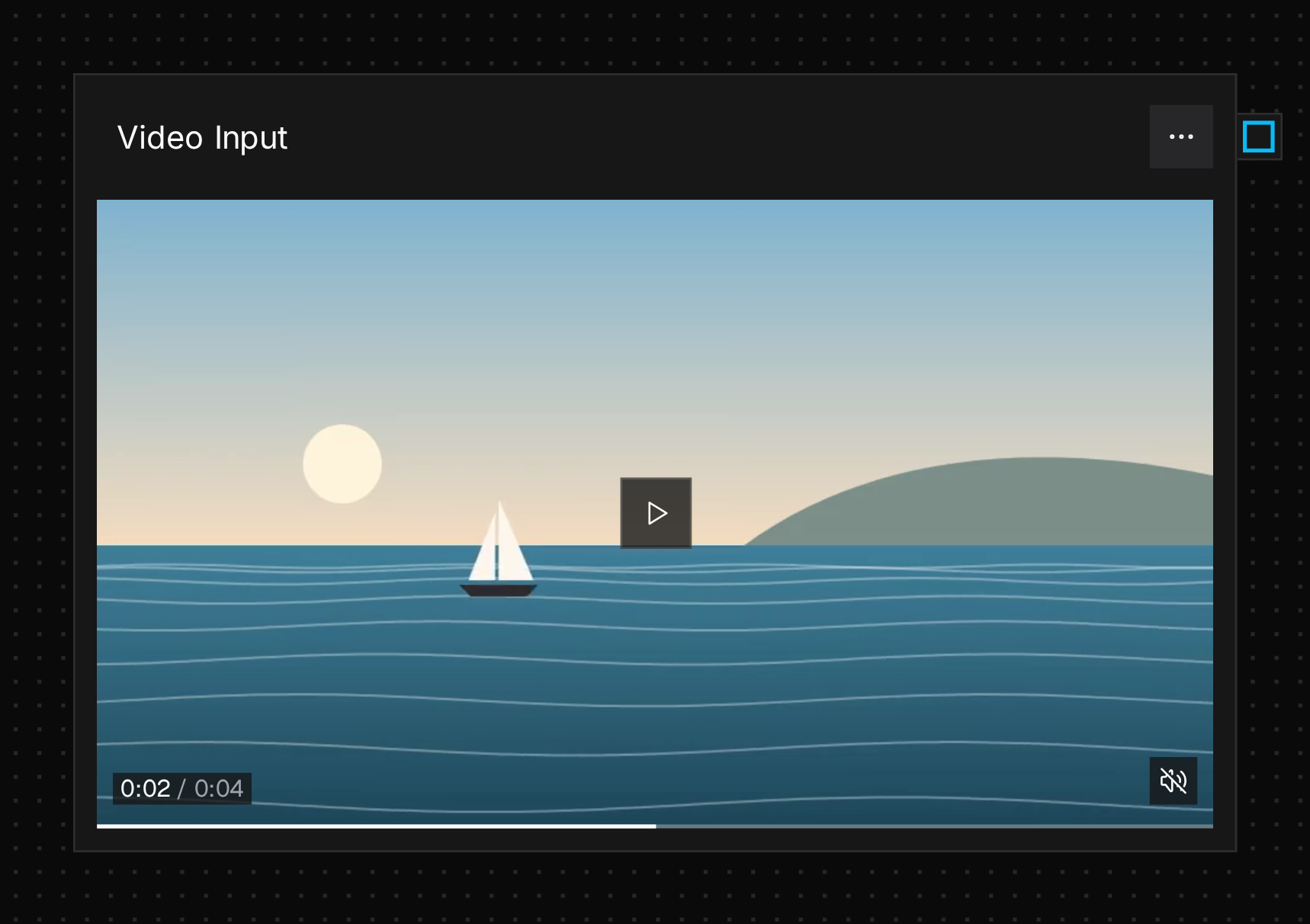
The paused preview shows playback controls. The clip is illustrative media.
Add a video
- Add Video Input to your Graph.
- Select Choose file inside the Node.
- Choose a video file from your computer.
- Wait for Studio to finish preparing the video.
- Connect Video to a video input on another Node, such as Extract Audio.
You can also drop a local video file onto Video Input. To use a video from a website, download the file first; dropping a link does not import it.
Preview a video
Click the video to pause or resume it. Move the pointer over a playing video to reveal its playback information. The time display shows the current position and full clip length.
Select Play in the center to resume a paused video. Drag Seek video along the bottom edge to inspect another moment. You can also reach Play or Pause with the keyboard.
Use Mute or Unmute to change the preview's sound. Playback controls leave the clip and soundtrack supplied to other Nodes unchanged.
Add a new soundtrack
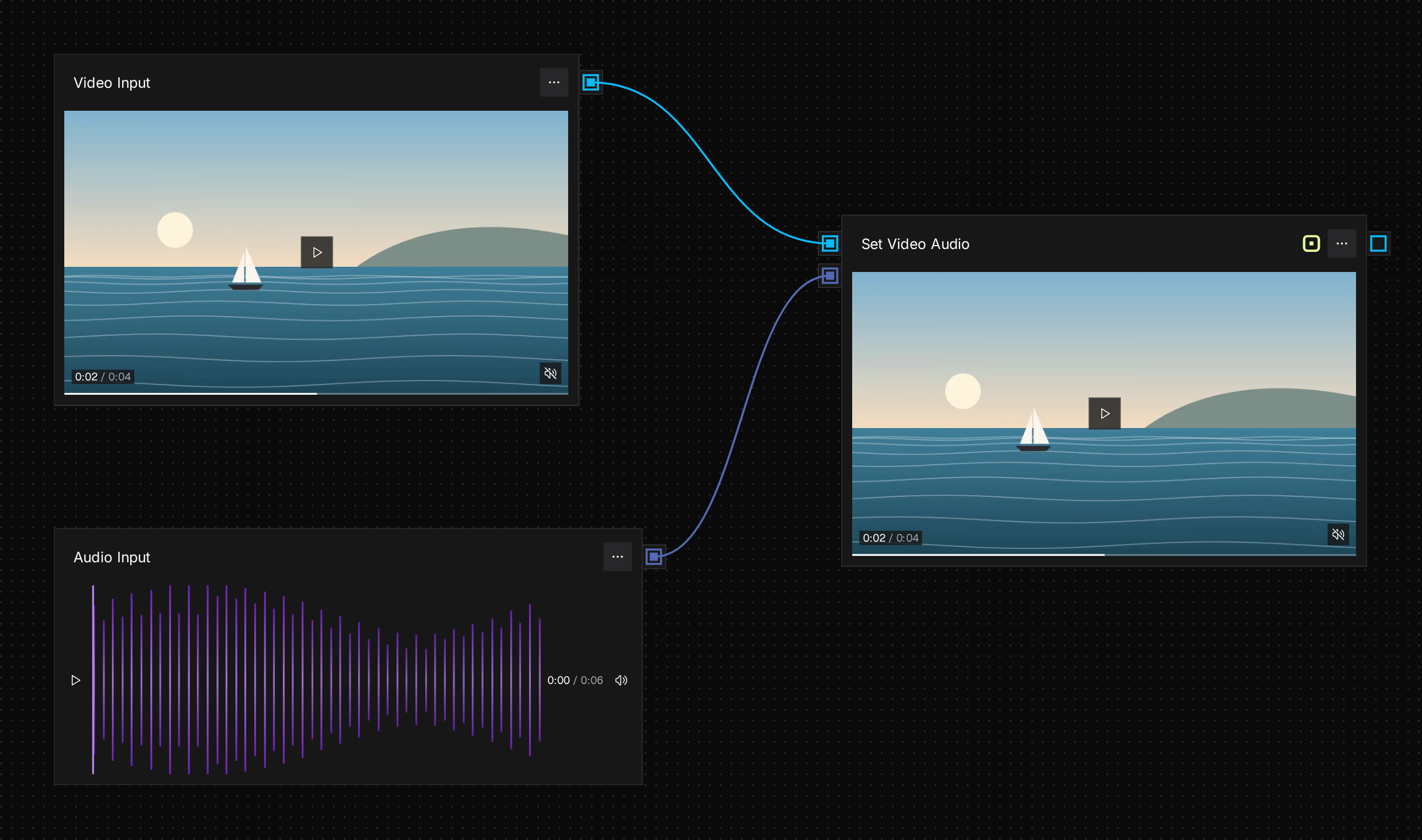
Video Input used to give a coastal scene a new soundtrack with Audio Input and Set Video Audio. The media and output are illustrative.
Replace a video
Drop another local video file onto the Node to replace the clip. Existing connections use the replacement in the next Run.
To use the file picker instead:
- Right-click the video preview.
- Select Remove media.
- Select Choose file.
- Choose the replacement file.
Inputs and outputs
Video Input has no input ports.
| Output | Type | Value |
|---|---|---|
| Video | Video | The prepared clip, including its soundtrack when present |
| Width | Integer | Frame width in pixels; optional output |
| Height | Integer | Frame height in pixels; optional output |
Expose Width or Height from the settings sidebar to use either dimension as an output port. To change the dimensions, connect the video to Resize Video.
The clip must meet the shared Video limits. The receiving Node can impose further limits on dimensions, duration, or frame rate.
Studio converts video when needed for use in a Graph. Preparation depends on the formats your browser can decode and encode. If Studio cannot prepare the file, read the error and export another copy in a format your browser supports before trying again.
Related pages
-
Video — formats, limits, and compatible connections.
-
Audio Input — add a replacement soundtrack.
-
Set Video Audio — put that soundtrack on your video.
-
Extract Audio — take the soundtrack from a video.
-
Resize Video — change the frame dimensions.