Extract Audio
Extract Audio takes the soundtrack from a video so you can use it as a separate audio track. Connect a video and run the Node; there are no settings to adjust.
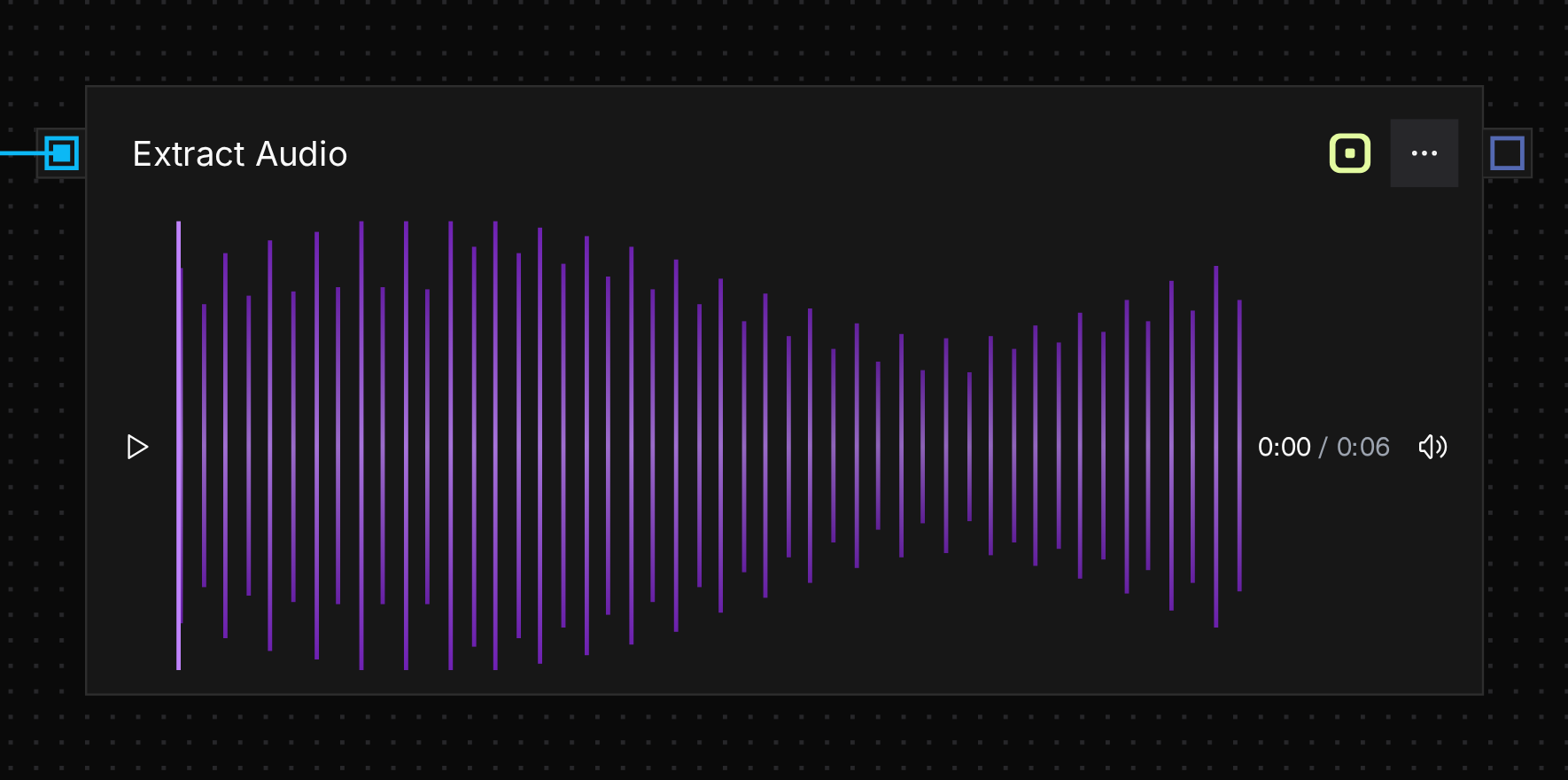
The audio player lets you listen to the extracted track. The result shown is illustrative.
Extract a soundtrack
- Add Extract Audio to your Graph.
- Connect a video from Video Input or another Node to Video.
- Select Extract Audio.
- Select Run Selected.
The Audio output starts at the beginning of the video. The source video keeps its soundtrack.
Reuse the soundtrack on another video
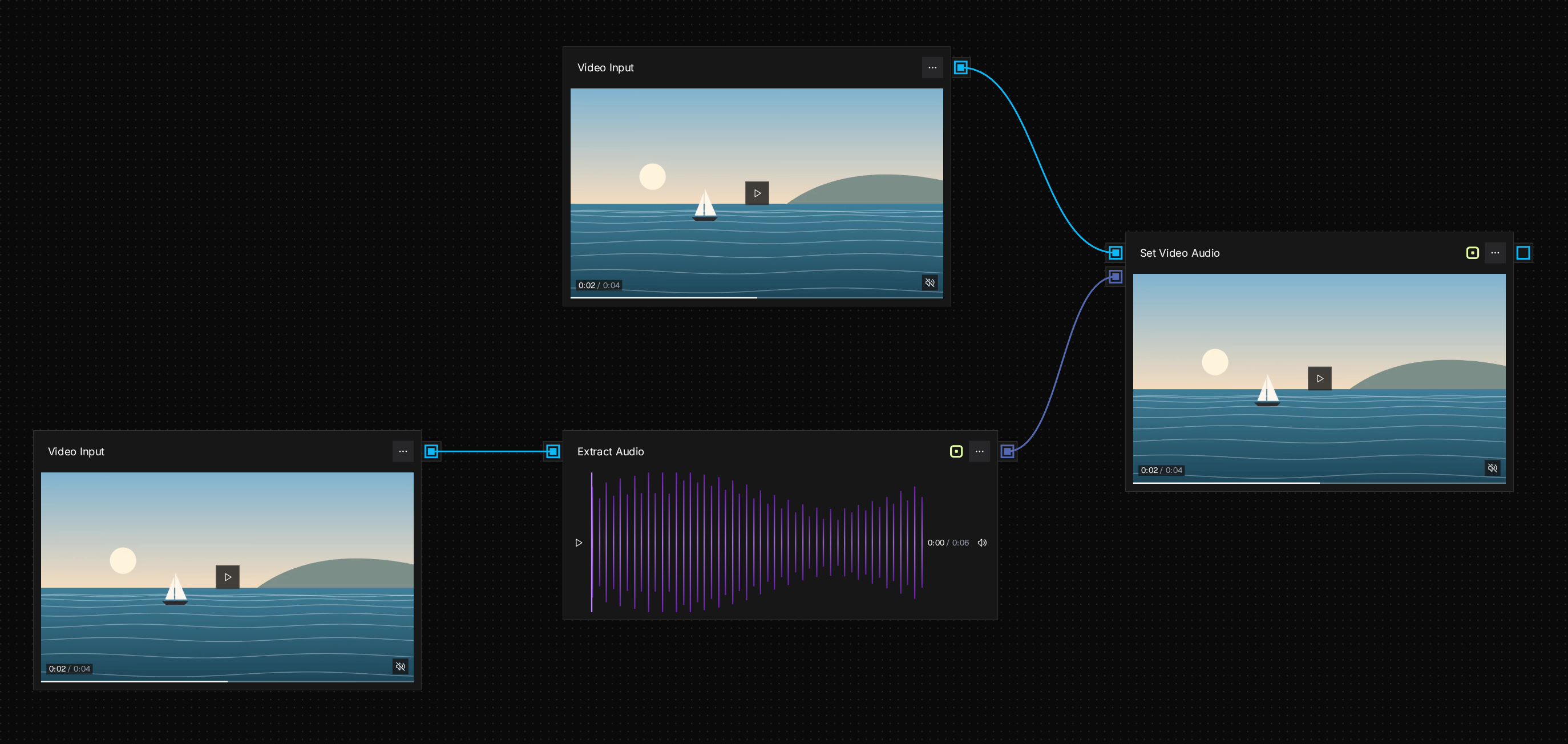
Extract Audio used to reuse a recorded soundtrack on another coastal clip. Media and results are illustrative.
Connect Audio to Set Video Audio, then connect the destination clip to that Node's Video input. Run Set Video Audio to replace the destination clip's soundtrack. It fits the track to the destination video's duration.
Track length and silence
Extract Audio fits the track to the source video's duration:
| Source soundtrack | Extracted audio |
|---|---|
| Same length as the video | Full soundtrack |
| Longer than the video | Trimmed at the end |
| Shorter than the video | Silence added at the end |
| No soundtrack | Silence for the full video duration |
For example, a 10-second video with 7 seconds of audio produces a 10-second track. The last 3 seconds are silent.
Inputs and outputs
| Inputs |
|---|
| Video Video The video whose soundtrack you want to extract. |
| Outputs |
|---|
| Audio Audio A separate track for any Node that accepts audio. |
The source must meet the Video limits. The extracted track must meet the Audio limits. Extract Audio has no trimming, volume, or track-selection settings; it uses the soundtrack supplied by the Video value.
Related pages
- Set Video Audio — replace a video's soundtrack.
- Video Input — add a source video.
- Audio Input — use an audio file you already have.