Text Input
Text Input supplies text you write to other Nodes. Use it for an image prompt, a description of objects to select, or one description shared by several models. A new Text Input starts empty.
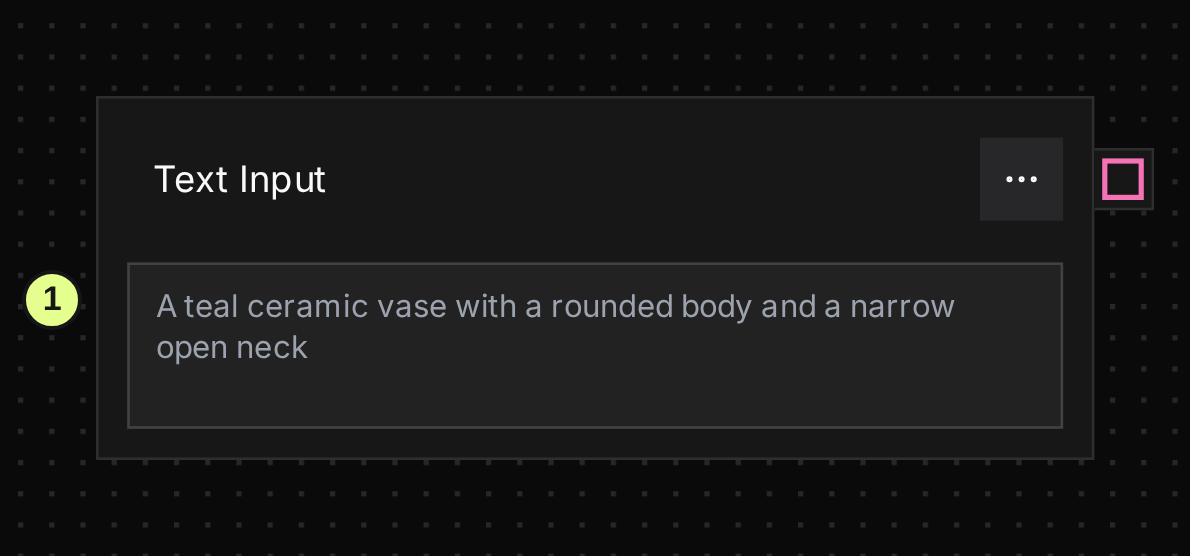
Enter a description in the text area, then connect the Text output on the right.
- Text area. Type or paste your text. Studio keeps edits as you type. Double-click inside the field to select all its text.
Use a prompt
- Add Text Input to your Graph.
- Enter a description, such as “A teal ceramic vase with a rounded body and a narrow open neck.”
- Connect Text to Prompt on Z-Image Turbo.
- Select Z-Image Turbo.
- Select Run Selected.
Run the receiving Node again after editing the description. The earlier result stays visible until a new result replaces it; it can still show an older prompt.
Share a description
Connect Text to more than one Node to reuse your wording. In this Graph, one vase description supplies both an image prompt and a 3D model prompt.
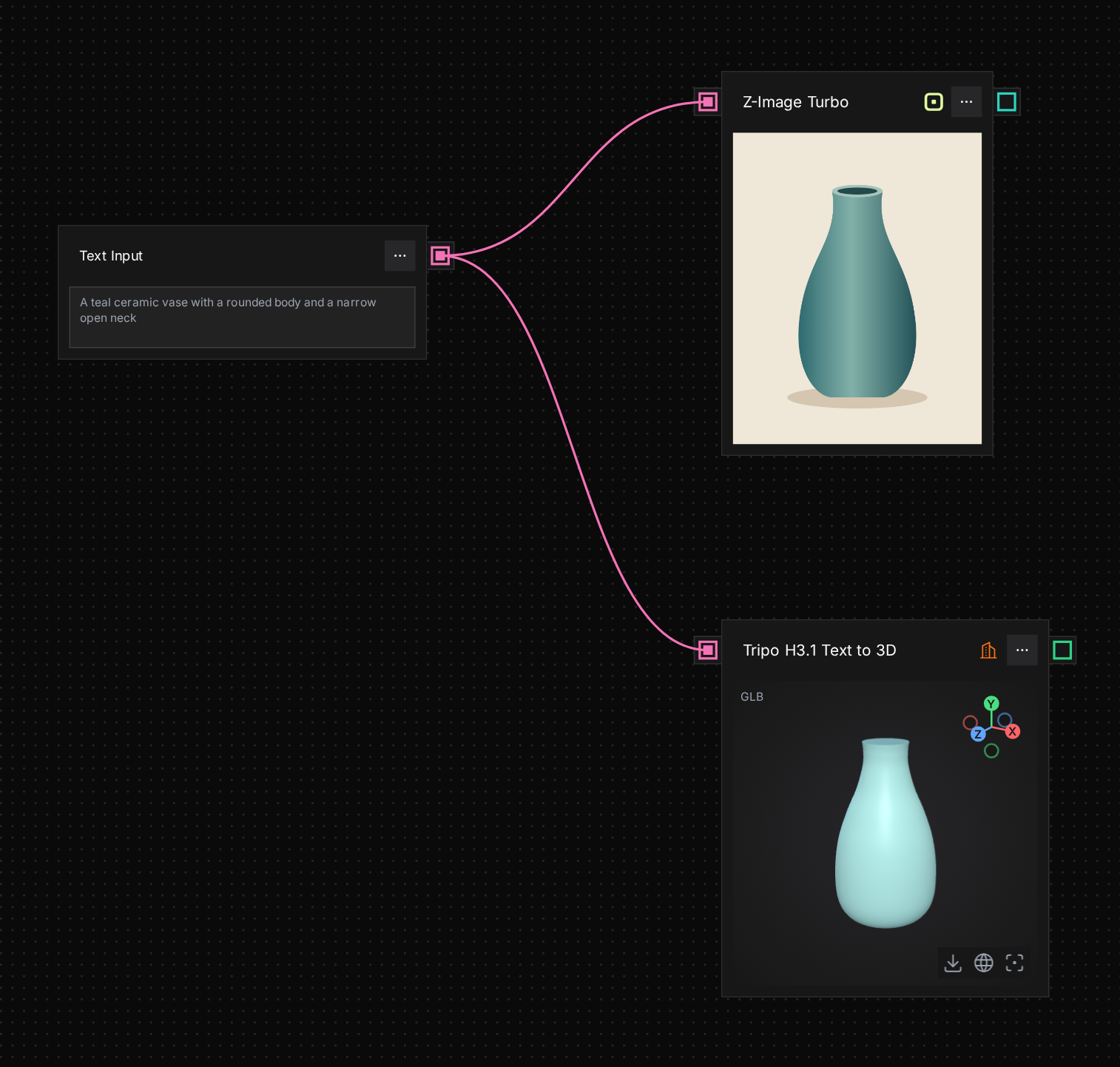
Text Input used to share a vase description between image generation and Tripo H3.1 Text to 3D. The prompt and placeholder results are illustrative.
Inputs and outputs
Text Input has no input ports or settings of its own.
| Output | Type | Value |
|---|---|---|
| Text | String | The text entered in the Node |
Connect Text to an input that accepts a String. Text Input supplies the same text to every connected input, including line breaks. It does not turn a description into an image or 3D model itself; the receiving Node does that work.
The receiving Node applies its own prompt limits. If a Run rejects your text, check that Node's reference for supported content and length. For example, Tripo H3.1 Text to 3D accepts a prompt of at most 1,024 characters.
Related pages
- String — text values and compatible connections.
- Z-Image Turbo — create an image from a prompt.
- Tripo H3.1 Text to 3D — create a 3D model from a description.
- SAM3 Image — describe objects to select in an image.
- Working with Nodes — connect Nodes and run them.