Tripo H3.1 Image to 3D
Tripo H3.1 Image to 3D turns an object image into a 3D mesh. With one image connected, it generates the object from that view. Add other views to describe more of the same object.
Studio uses Tripo H3.1 through fal's image-to-3D API.
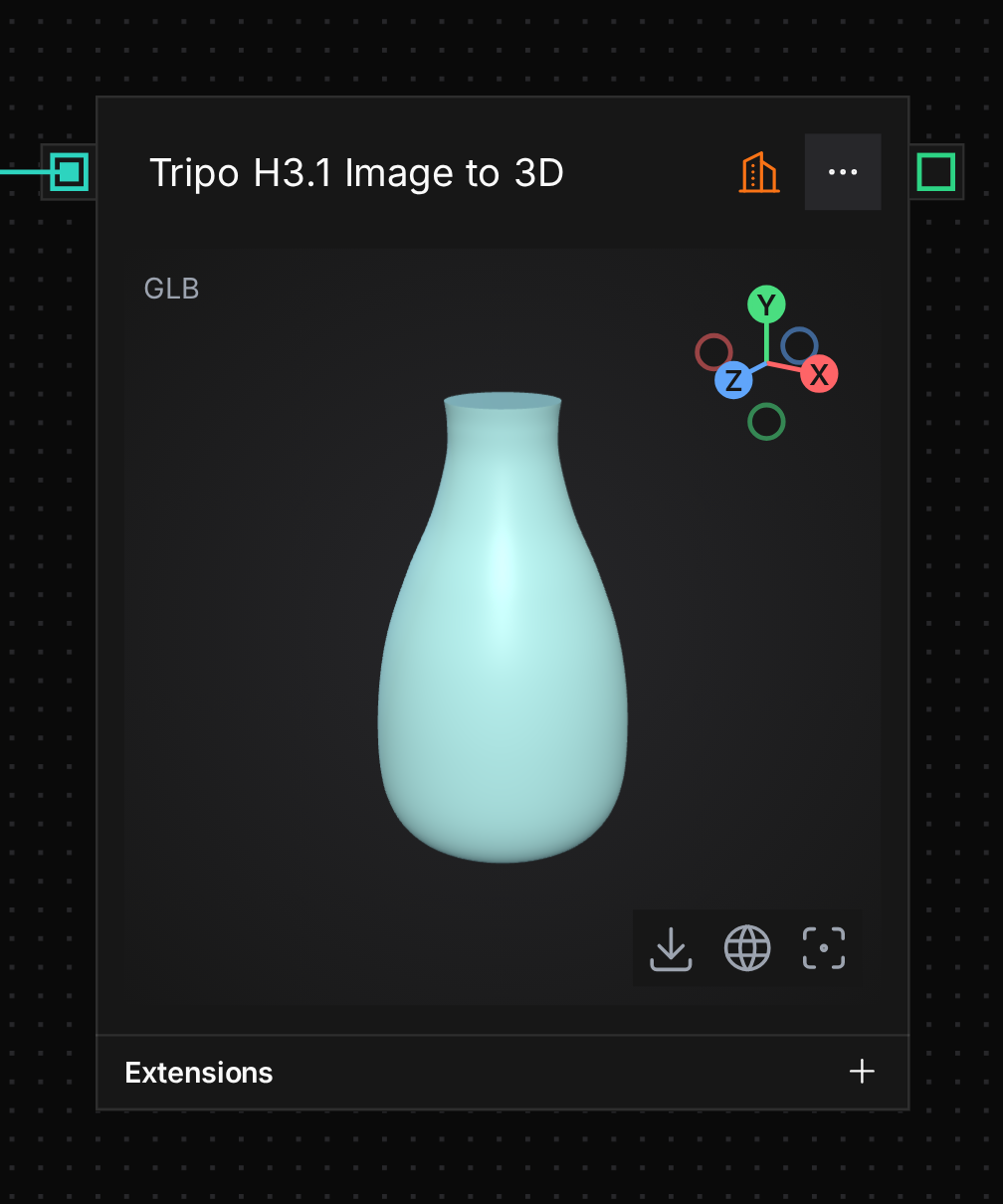
Tripo H3.1 Image to 3D with an illustrative vase result.
Create a mesh from an image
- Add Tripo H3.1 Image to 3D to your Graph.
- Connect Image Input or another Image output to Image (Front in multiview).
- Select the Node to open its settings.
- Choose Topology and Materials for the mesh you need.
- Select Run Selected.
- Inspect the Mesh output in the Node's 3D preview.
Use an image that clearly shows the object you want to model. The Node accepts Images at least 32 pixels wide and high, following Studio's shared limits. It adds no fixed resolution or aspect-ratio requirement.
Add other views
- Select + in the Node's Extensions header.
- Add Multiview.
- Connect another view of the object to Left, Back, or Right.
- Select Run Selected.
The primary image becomes the front view. Each added image must show the same object from its named direction. You can supply one, two, or all three extra views; leave missing views unconnected. For example, front and back images use the primary input and Back, with Left and Right empty.
Adding the extension without connecting another image keeps single-image generation. Studio allows one Multiview extension, for at most four views in total. It does not require matching image dimensions. See Model Extensions for the shared controls.
Inputs and outputs
| Inputs |
|---|
| Image (Front in multiview) Image Required source image. Also the front view when other views are connected. |
| Left, Back, Right Image Optional · Multiview Up to three additional views of the same object. |
| Outputs |
|---|
| Mesh Mesh3D One generated mesh, including textures when requested. |
Studio keeps the generated mesh in GLB or FBX format as returned by the model. Quad output can be FBX. There is no output-format selector or separate rendered-image output on this Node.
Choose geometry and materials
| Setting | What it does |
|---|---|
| Topology | Requests triangular faces or four-sided faces (quads). |
| Target Faces | Requests a face count. Auto lets the model choose it. An explicit target must fit the limits below. |
| Geometry Quality | Chooses standard or detailed geometry generation. This also changes the maximum triangle target. |
| Materials | none requests untextured geometry; textured adds textures; pbr adds textures and physically based materials that describe how surfaces respond to light. |
| Texture Quality | Chooses standard or detailed textures. This has no visible texture effect when Materials is none. |
| Texture Alignment | original_image aligns textures to the source image; geometry aligns them to the generated shape. |
| Orientation | align_image requests rotation to match the source image; default leaves the model's orientation choice. |
| Estimate Real World Scale | Requests an estimate of the object's physical size in meters. It is an estimate, not a measured dimension. |
| Seed | Controls geometry and texture generation together. A fixed seed must be between 0 and 2,147,483,647. |
Target Faces
| Topology | Geometry Quality | Allowed target |
|---|---|---|
triangles | standard | 1,000–1,500,000 |
triangles | detailed | 1,000–2,000,000 |
quads | Either quality | 1,000–150,000 |
Studio blocks a Run when an explicit target is outside the selected range. Lower Target Faces after switching to quads if the previous triangle target is too large. A target requests the amount of geometry; it does not promise an exact returned face count.
Studio plans for texture sides up to 2,048 pixels with standard quality and 4,096 with detailed. These are planning bounds, not promised output dimensions; Studio reads the actual mesh after the Run.
Turn a concept into a 3D object
Generate an object reference with Z-Image Turbo, then connect its Image output to Tripo. This lets one Graph go from a written concept to an image and then a mesh.
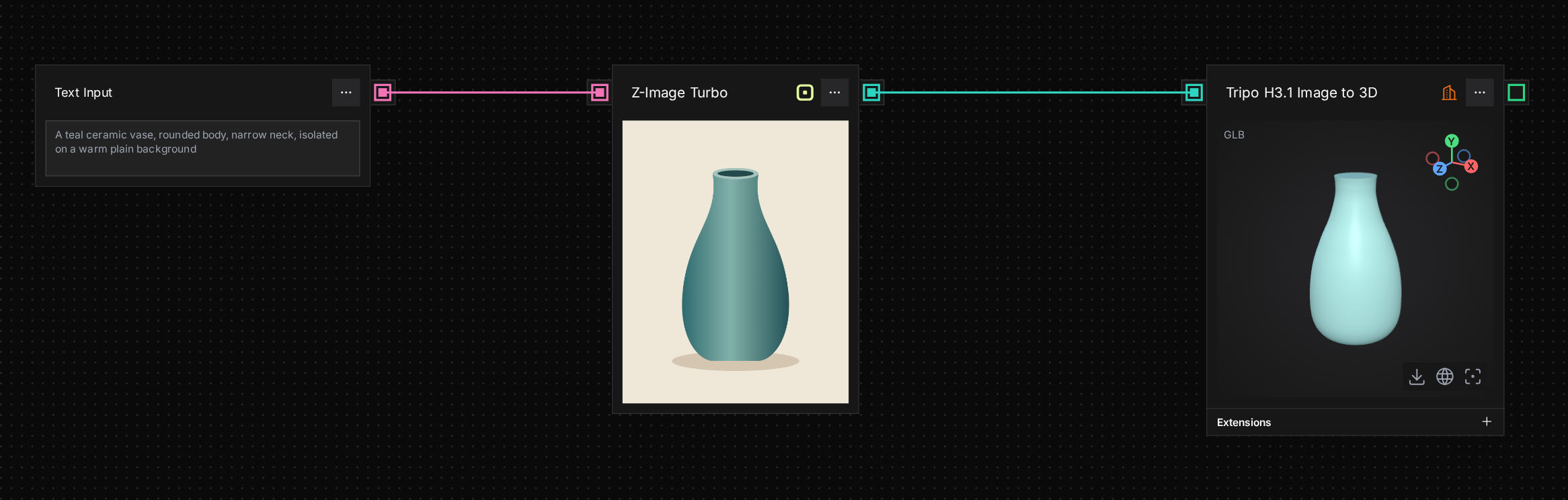
Tripo H3.1 Image to 3D used to turn a generated vase concept into a mesh; the image and mesh are illustrative outputs.
Related pages
- Mesh3D — mesh formats and limits.
- Image — image values and shared limits.
- Tripo H3.1 Text to 3D — generate a mesh directly from a prompt.
- Mesh Input — import an existing mesh.
- Resize Image — prepare an image at a chosen size.