GPT Image 2.5 Flare (on fal)
GPT Image 2.5 Flare creates an image from a text prompt. Connect reference images to guide an edit, or add a mask to identify areas of the first reference to change.
Studio uses fal's GPT Image 2.5 Flare.
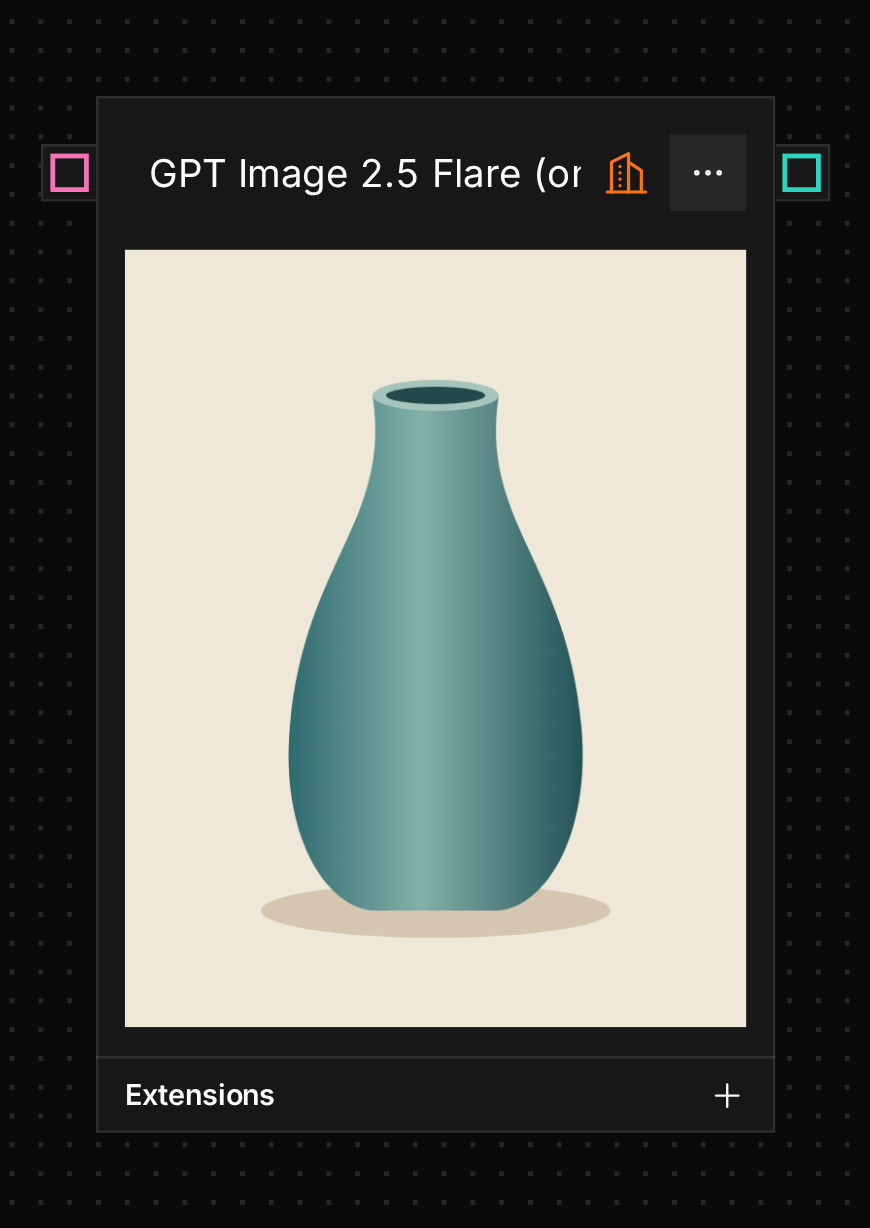
The image is illustrative placeholder media, not a checked generation result.
Generate an image
- Add GPT Image 2.5 Flare (on fal) to your Graph.
- Connect Text Input to Prompt and describe the image you want.
- Select the Node and choose its dimensions, Quality, and Background.
- Run the Node to produce one Image.
Choose Transparent for an image with an alpha channel, or Opaque for an RGB image. The output is PNG.
Edit reference images
- Add Image Reference from the Node's Extensions menu.
- Connect an image from Image Input or another Node.
- Describe the change in Prompt, then run the Node.
You can add up to 16 references. Their row order determines the order sent to the model. Studio reduces each oversized reference proportionally to fit within 3,840 pixels on its longest side and 8,294,400 pixels in total. These limits apply to each reference separately.
The output uses the dimensions you choose on Flare; it does not automatically keep the first reference's size.
Guide an edit with a mask
Add the Mask extension and connect a mask alongside at least one reference image. The mask applies to the first connected reference. The fal editing interface uses white to mark areas to edit and black to mark areas to keep.
Draw Mask supplies a grayscale mask. Studio also accepts RGB or RGBA masks: grayscale values, the average of RGB channels, or the RGBA alpha channel supply the coverage. An opaque RGBA image has full coverage everywhere, even if its visible picture is black and white.
Studio resizes the mask to match the first reference, then reduces both together if the reference is too large. A mask without a reference cannot run. Check the generated result before using it; the mask guides a model edit.
Dimensions and prompt limits
| Setting | Requirement |
|---|---|
| Width and Height | Rounded to the nearest multiple of 16 pixels; halfway values round upward. |
| Longest side | At most 3,840 pixels after rounding. |
| Total pixels | From 655,360 to 8,294,400 after rounding. |
| Aspect ratio | No wider than 3:1 and no taller than 1:3. |
| Max Prompt Length | A whole number from 1 to 10,000 characters. Text beyond the chosen length is removed. |
For example, requesting 1,920 × 1,080 produces a 1,920 × 1,088 canvas. A 512 × 512 canvas is too small because its total pixel count is below the minimum.
Keep essential instructions near the beginning of the prompt. Character counting follows String rules. Shared Image limits and the receiving Node's requirements still apply when you connect the result elsewhere.
Develop a 3D concept
Connect Flare's Image output to Tripo H3.1 Image to 3D to turn an image concept into a model.
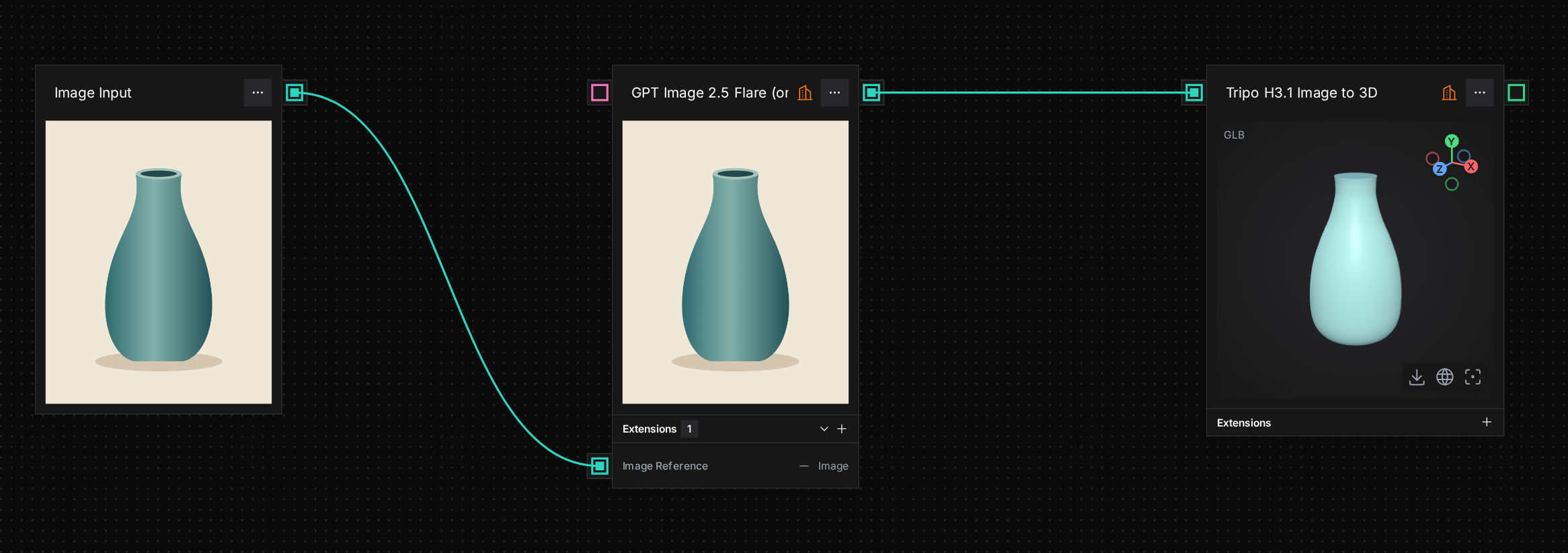
GPT Image 2.5 Flare used to develop a vase concept for a 3D model; the reference and both results are illustrative.